
Starting a JioMeet video call takes about a minute. Open the app, tap the option to start a meeting, turn your camera on or off and share the link with the people you want. To plan a call for later, use Schedule instead, set a title, date and time, and send the invite in advance.
JioMeet works on Android phones, iPhones, computers and in a web browser. The steps below use the phone app, with notes for the desktop and web versions. Button names change a little between updates, so look for similar labels if yours look different.
- Tap Start a Meeting (or similar) for an instant call, then invite people with the link
- Use Schedule to set a meeting title, date, start time and security options
- Share the invite on WhatsApp, email or SMS; it contains the link, meeting ID and password
- Turn on a password or waiting room for meetings with people outside your family or team
What You Need Before Your First Meeting
Get these ready first so your first meeting starts smoothly.
- The JioMeet app or a browser. Install JioMeet from the Google Play Store or the App Store. On a laptop, use the desktop app or open JioMeet in a browser such as Chrome or Edge.
- A JioMeet account. Hosts sign up with a mobile number or email address and verify it with an OTP. You do not need a Jio SIM to use JioMeet.
- Camera and microphone permission. Allow these when the app asks. Without them, others cannot see or hear you.
- A steady connection. Wi-Fi, JioFiber or a good 4G or 5G signal works best for video.
How to Start an Instant Meeting on JioMeet
Use an instant meeting when you want to talk right now, such as a quick family call or a doubt-clearing session.
- Open JioMeet and sign in.
- On the home screen, tap Start a Meeting, New Meeting or a similar button.
- Choose whether to join with your video on or off.
- Tap Start to open the meeting room.
- Tap Invite or the participants icon, then copy the meeting link or share it through WhatsApp, email or SMS.
People who tap the link can join right away, or wait in the waiting room if you turned it on.
Personal meeting ID or a fresh one?
JioMeet can give you a personal meeting ID that stays the same every time. It is handy for regular calls with the same people, like a weekly family catch-up.
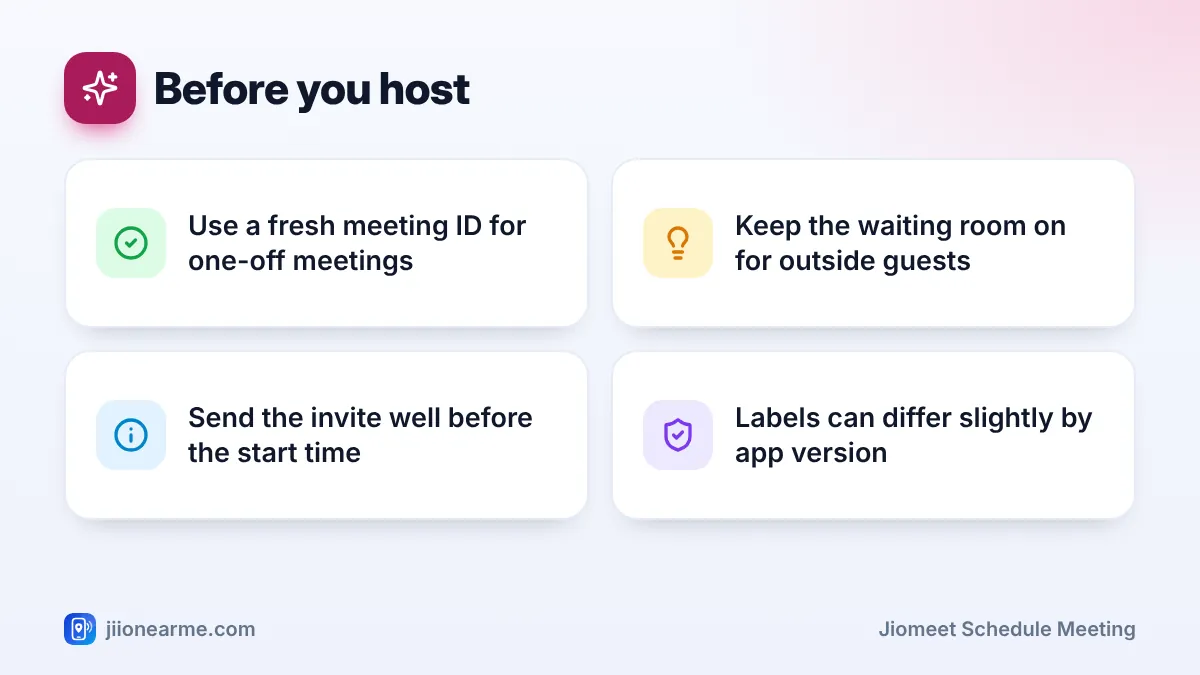
For one-off meetings, especially with people you do not know well, use a fresh meeting ID. That way, someone who has your old personal link cannot drop into a later meeting uninvited.
JioMeet Schedule Meeting Steps for Calls Later
Scheduling lets you plan a class, interview or team call in advance so everyone has the details ahead of time.
- Open JioMeet and tap Schedule or Schedule a Meeting on the home screen.
- Enter a clear meeting title, such as “Class 8 Maths Revision” or “Project Review”.
- Pick the date and start time. Check that the time zone is correct if participants are in different places.
- Set the duration, if the app asks for it. This is a guide for participants; it does not usually cut the call off.
- Choose security options such as a meeting password and the waiting room.
- Add participants’ email addresses if the form allows it, or leave this empty and share the link yourself.
- Tap Schedule, Save or Done.
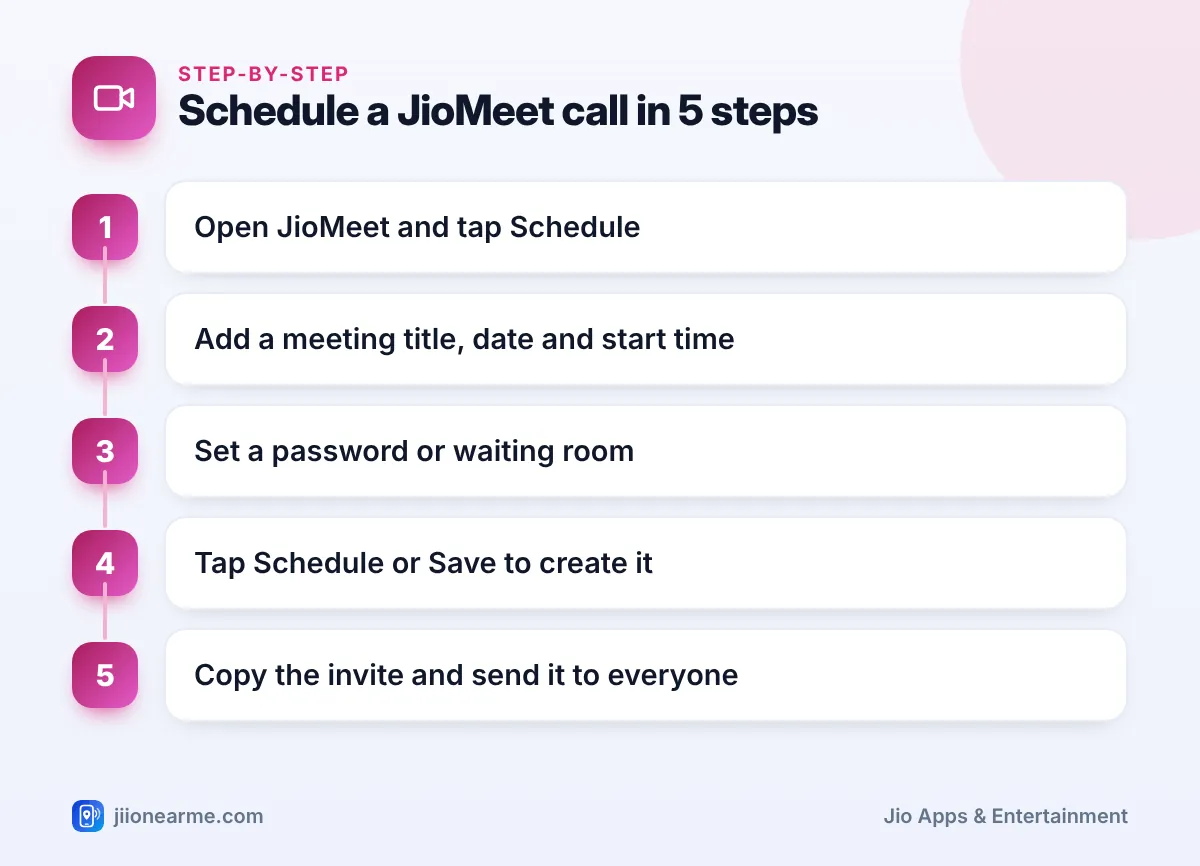
The meeting now appears in your list of upcoming meetings, usually on the home screen or in a Meetings or Calendar tab.
If your version shows a repeat or recurring option, use it for weekly classes or daily stand-ups. If it does not, schedule each meeting separately or reuse your personal meeting ID for a regular group you trust.
Sending the Invite Link to Participants
After you schedule a meeting, open it from your upcoming list and look for Share, Invite or Copy invitation.
The invitation usually includes:
- the meeting title, date and start time
- a link that opens the meeting directly
- the meeting ID and password, for people who prefer to type them
Send it in the way your participants are most likely to see it. A WhatsApp message works well for families and students. Email suits office meetings. Some versions also let you add the meeting to your phone or computer calendar, which helps with reminders.
Send the invite a day early and again a few minutes before the start. Many people lose the first message in a busy chat.
Meeting Settings Worth Checking
A few settings make a big difference, especially for classes and meetings with outsiders. Names vary by version, but most hosts will find options like these when scheduling or inside the meeting.
| Setting | What it does | When to use it |
|---|---|---|
| Meeting password | People need the password to enter | Almost always, especially for public groups |
| Waiting room | You admit each person before they join | Classes, interviews, meetings with guests |
| Mute participants on entry | People join with the mic off | Large groups and online classes |
| Host-only screen sharing | Only you can present | Lessons and presentations |
Finding, Editing or Cancelling a Scheduled Meeting
Plans change. Open your upcoming meetings list and tap the meeting you want to change.
- To edit: tap Edit, change the title, date, time or settings, and save. If the link changes, send the new invite.
- To cancel: tap Delete or Cancel meeting and confirm. Tell participants separately so nobody waits for a call that is not happening.
If you scheduled a meeting on your phone, you can usually see it on the desktop app or web version too when you sign in with the same account.
Common Problems When Starting a Meeting
- Camera or mic not working: check app permissions in your phone settings and close other apps that use the camera.
- People cannot hear you: make sure your mic is unmuted in the meeting toolbar and that Bluetooth earphones are connected properly.
- The link does not open for a participant: ask them to update JioMeet or open the link in a browser.
- The video keeps freezing: move closer to your Wi-Fi router or switch your video off for a while.
Frequently Asked Questions
Do I need a Jio SIM to host a JioMeet meeting?
No. JioMeet works on any mobile network or Wi-Fi connection. You sign up with a mobile number or email address.
Can I schedule a JioMeet meeting from my laptop?
Yes. Sign in to the JioMeet desktop app or the web version and use the schedule option on the home screen. The steps are very similar to the phone app.
Will participants get a reminder before the meeting?
That depends on how they received the invite. If they added it to their calendar, they will get the calendar reminder. Otherwise, send a short message before the start time.
Can someone else start my scheduled meeting?
Usually the host starts the meeting. If you cannot attend, you can share hosting duties during a call by making someone a co-host, or ask a colleague to schedule a separate meeting.
Is JioMeet free to use?
JioMeet has been free for everyday video meetings. Check the app for any current limits on meeting length or the number of participants.
Summary
To start a JioMeet call now, tap the start option and share the link. To plan ahead, tap Schedule, add a clear title, date and time, and turn on a password or waiting room. Then send the invite early and remind people just before the start. With these few habits, your meetings begin on time and only the right people get in.
JIo Near me is an independent guide and is not affiliated with Reliance Jio. App menus, plans and policies can change – always confirm current details in the official MyJio app or on jio.com. We will never ask for your OTP, PIN or passwords.
