Your JioPhone Next guides you through setup on its very first start. You pick a language, join Wi-Fi, sign in with a Google account and set a screen lock, then land on the home screen ready to use. Most screens need just one or two taps, and you can change nearly every choice later in Settings.
This guide walks through each screen in order and explains what to choose. The phone runs Pragati OS, which is based on Android, so setup will feel familiar if you’ve used an Android phone before. Screen names and their order can differ slightly with the software version, so go with the closest match if something looks different.
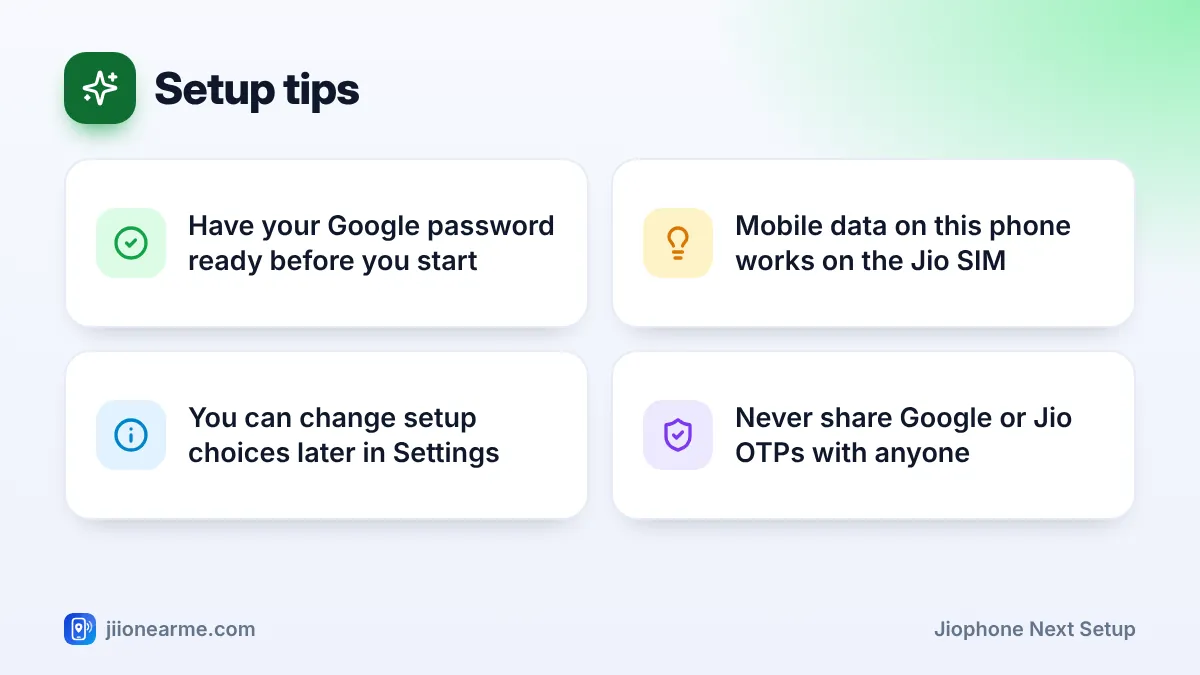
- Charge the phone and keep your Wi-Fi password and Google account details ready before you start.
- Choose your language first, and the rest of setup appears in that language.
- A Google account is needed for the Play Store, contact backup and Find My Device.
- Set a screen lock you will remember, as forgetting it can mean a full reset.
Before You Start: What to Keep Ready
A few minutes of preparation makes setup smoother:
- An active Jio SIM. The JioPhone Next is built around Jio’s network, and its mobile data works on the Jio SIM.
- Charge. Charge the phone to at least half before you begin, since setup may download updates.
- Wi-Fi name and password. Wi-Fi is faster for the first round of app and system updates, and it saves your mobile data.
- Google account details. If you already use Gmail or YouTube on another phone, keep that email address and password ready. If you don’t have an account, you can create one during setup.
- Access to your recovery number. Google may send a verification code to the phone number linked to your account.
Insert the SIM and Switch On
Switch the phone off before inserting anything. Follow the diagram in the quick start guide inside the box to reach the SIM and memory card slots. Place your Jio SIM as shown, and if the guide marks a particular slot for the Jio SIM, use that one. Add a microSD card now if you plan to keep photos and music on one.
Press and hold the power button on the side of the phone for a few seconds until the logo appears. The first start can take a little longer than usual, so give it a minute.
JioPhone Next Setup: The Welcome Screens Step by Step
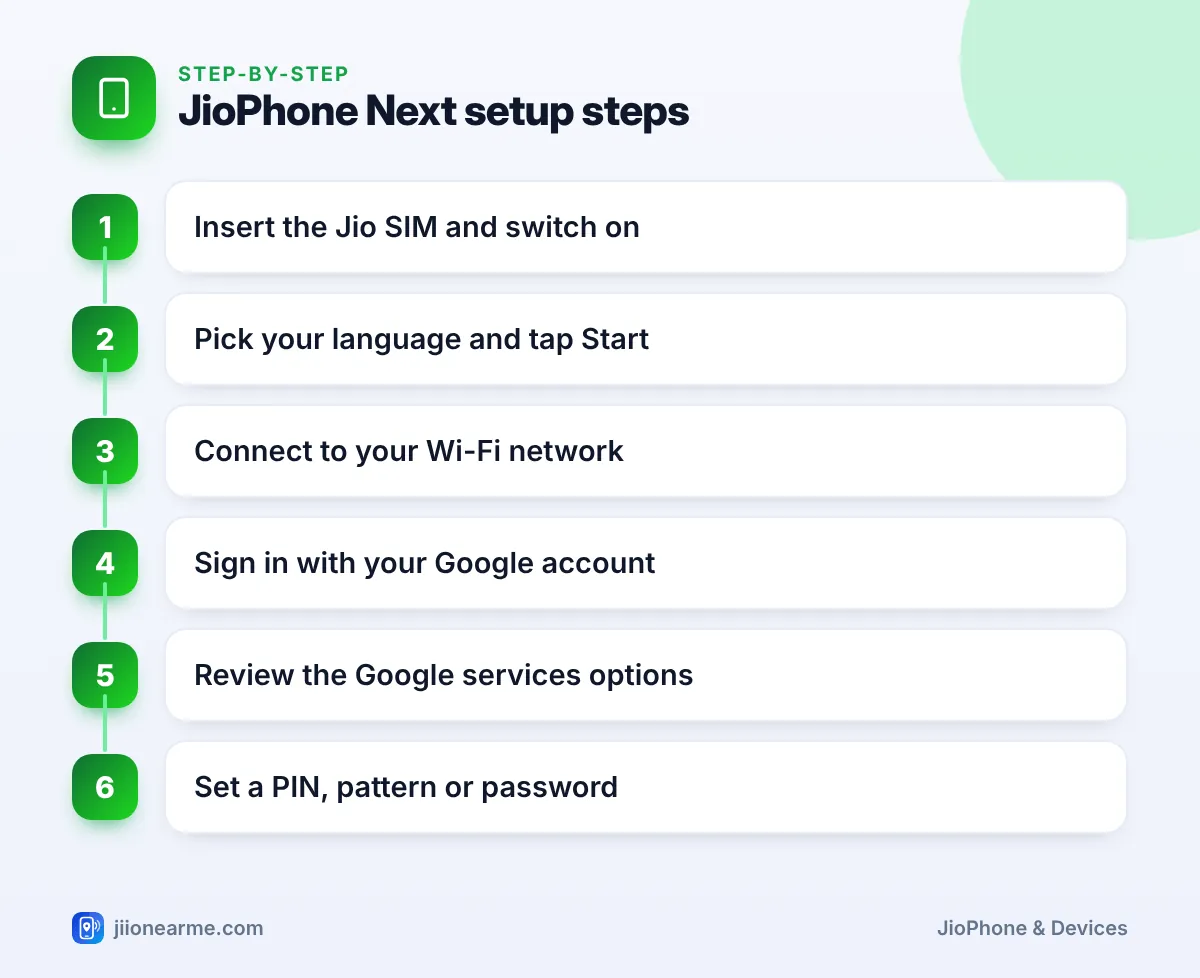
1. Choose your language
The first screen shows a welcome message with a language option. Tap the language, pick the one you read most comfortably (Pragati OS supports English and several Indian languages), then tap Start.
2. Connect to Wi-Fi
You’ll see a list of nearby Wi-Fi networks. Tap yours, type the password carefully and tap Connect. If you don’t have Wi-Fi, look for an option to use mobile data or to skip this step. Some later screens need the internet, so your Jio mobile data will be used if you skip Wi-Fi.
3. Copy data, or skip for now
Some software versions show a screen offering to copy apps and data from an old phone. You can follow it, or choose the option to skip (such as Don’t copy) and move contacts, photos and chats afterwards. Skipping keeps the first setup quick.
4. Sign in with your Google account
Enter your Gmail address or phone number, tap Next, then type your password. If Google sends a verification code, enter it only on this screen. To make a new account, tap Create account and follow the prompts. Then read and accept Google’s terms to continue.
5. Review Google services
A screen lists options such as backing up to your Google account, using location and sending usage data. Each one has a switch. Read them, keep what you want, turn off the rest and tap Accept.
6. Set a screen lock
Choose a PIN, pattern or password. A PIN of four to six digits is easiest for most people. Enter it twice to confirm. You can skip this step, but then anyone who picks up the phone could open your WhatsApp, photos and payment apps.
7. Finish the remaining screens
You may see a few more screens, such as Google Assistant setup, Jio terms or display preferences. Complete them or skip them as you like. When the home screen appears, setup is done.
During setup, Google or Jio may send codes to your number. Type them only into the phone you’re setting up. No genuine Jio or Google employee will ever ask you to read a code out to them.
What You Can Change Later
Nothing you choose during setup is permanent. Here is where to find the main options afterwards. Labels can vary a little by software version.
| Setup choice | Where to change it later |
|---|---|
| Phone language | Settings > System > Languages & input |
| Wi-Fi network | Settings > Network & internet (or Wi-Fi) |
| Google account | Settings > Accounts |
| Screen lock | Settings > Security |
| Location and backup | Settings > Location, and Settings > Google |
If you can’t spot a label, use the search bar at the top of the Settings screen. Typing a word like “language” or “lock” takes you straight to the right option.
First Things to Do After Setup
Spend ten more minutes on these, and the phone will serve you better from day one.
- Check for a system update. Open Settings, go to System or About phone, and look for System update or Software update.
- Update your apps. Open the Play Store, tap your profile picture and choose Manage apps & device to see pending updates.
- Sign in to MyJio. Open the MyJio app (install it from the Play Store if it’s missing) to check your plan, validity and data balance.
- Make a test call and send a test SMS. Then turn Wi-Fi off and open a website to check mobile data.
- Adjust the display. Under Settings > Display, set brightness, font size and screen timeout to suit you.
If calls work but the internet doesn’t, check that mobile data is switched on in the quick settings panel and that your Jio plan is active. For help, call 199 from your Jio number or 1800-889-9999 from any phone.
Frequently Asked Questions
Can I set up JioPhone Next without a Google account?
Yes, you can skip the Google sign-in. However, you won’t be able to download apps from the Play Store or back up contacts until you add an account, which you can do later from Settings.
Why is Google asking for a verification code?
Google sends a code to confirm it’s really you signing in on a new phone. Enter it only on the setup screen, and never share it with anyone who calls or messages you.
How do I change the phone's language after setup?
Open Settings, go to System, then Languages & input and Languages. Add the language you want and move it to the top of the list.
What happens if I forget my screen lock PIN?
You may need to reset the phone, which erases its data. After a reset, the phone asks for the Google account that was on it before, so keep your Google password safe as well.
Does JioPhone Next work with a non-Jio SIM?
The phone is designed around Jio’s network, and mobile data works on the Jio SIM. Check the current SIM rules with the seller or on jio.com if you plan to use another operator’s SIM as well.
Wrapping Up
JioPhone Next setup is a short, guided process: language, Wi-Fi, Google account, services and a screen lock. Keep your passwords ready, read each Google services switch rather than tapping straight through, and finish with a system update and a test call. After that, the phone is ready for apps, calls and everyday use.
JIo Near me is an independent guide and is not affiliated with Reliance Jio. App menus, plans and policies can change – always confirm current details in the official MyJio app or on jio.com. We will never ask for your OTP, PIN or passwords.