Creating a playlist on JioSaavn takes less than a minute. Open your Library, tap Create Playlist, give it a name and start adding songs from the three-dot menu next to any track. You can then reorder songs, rename the playlist and share its link on WhatsApp or any other app.
Your own playlists are saved to your JioSaavn account, not just to your phone. That means they follow you to a new phone or the JioSaavn website once you sign in. This guide covers each step, from building the list to sharing it, along with fixes for common hiccups. Button names can differ slightly between app versions, so look for close matches.
- Create a playlist from Library, or straight from a song’s three-dot menu.
- Add songs with Add to Playlist and reorder them by dragging in Edit mode.
- Rename or delete a playlist from its three-dot menu. Deleting is permanent.
- Tap Share on a playlist to send a link that friends can open in JioSaavn or a browser.
Two Ways to Create a JioSaavn Playlist
You can start a playlist in two places. Both give the same result, so use whichever feels natural.
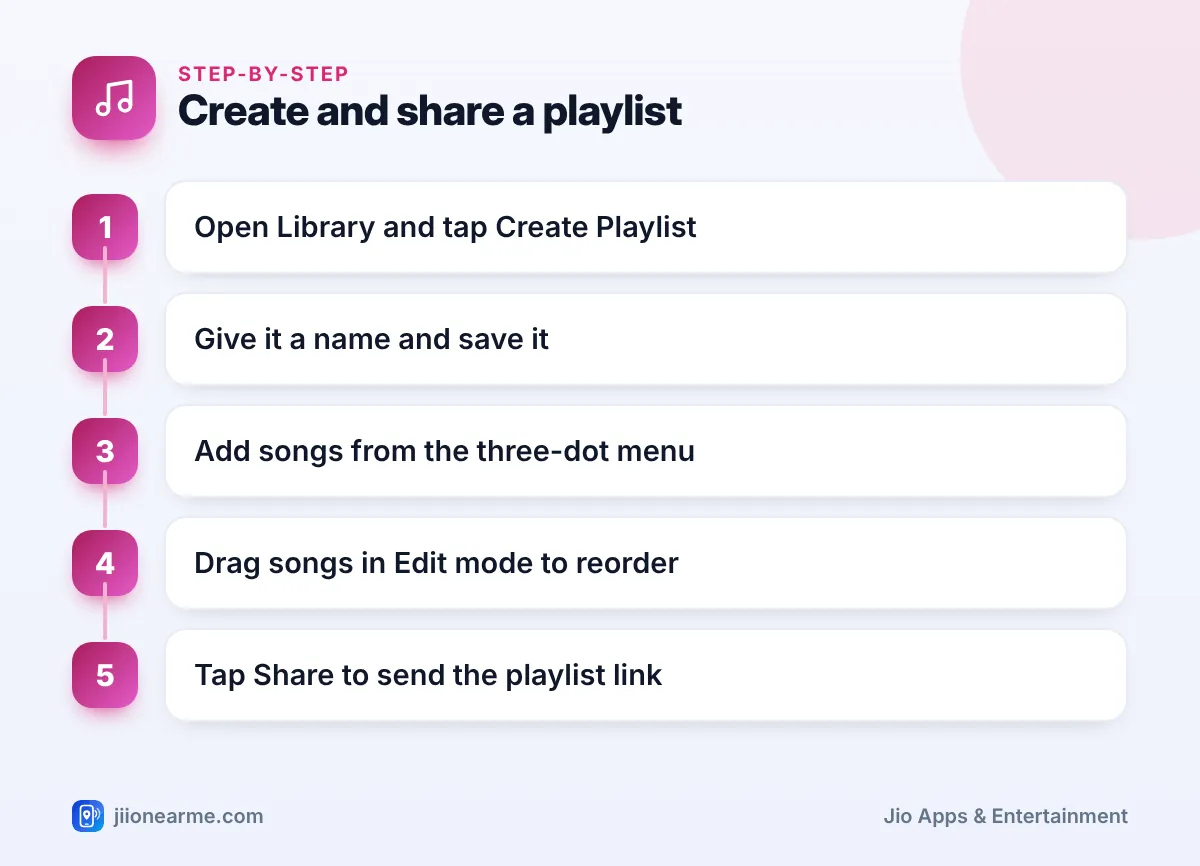
Method 1: From your Library
- Open the JioSaavn app and sign in.
- Tap Library at the bottom of the screen. Older versions may call it My Library or My Music.
- Open Playlists or My Playlists.
- Tap Create Playlist or the plus (+) icon.
- Type a name, such as “Morning Drive” or “Wedding Sangeet”, and tap Create or Save.
The new playlist is empty at first. You fill it by adding songs, as explained below.
Method 2: Straight from a song
- Find a song you like, in search results, an album or the player.
- Tap the three dots (⋮) next to it.
- Tap Add to Playlist.
- Choose Create New Playlist, type a name and save.
The song goes into the new playlist straight away. This is the quicker route when a song inspires the playlist in the first place.
Adding Songs to Your Playlist
Once a playlist exists, adding more music is simple.
- From any song: tap the three dots (⋮), choose Add to Playlist and pick your playlist.
- From the player: while a song is playing, open the full player, tap the three dots and choose Add to Playlist.
- A whole album: some versions let you add every track from an album at once through the album’s three-dot menu.
There is no strict need to add songs in the order you want them played. You can rearrange everything later.
Playlists work best when they have a clear purpose. Try one for the gym, one for long drives and one for family functions. A focused list is easier to share and easier to find when you need it.
How to Edit a JioSaavn Playlist
Your playlist is not fixed. You can change the order, remove songs or rename it whenever you like.
Reorder songs
- Open the playlist from Library.
- Tap Edit, a pencil icon or the three dots and then Edit Playlist.
- Press and hold the handle (≡) next to a song.
- Drag it up or down to its new position.
- Tap Done or Save to keep the new order.
Remove songs
In Edit mode, tap the minus or cross icon next to a song. On some versions, you instead tap the three dots next to a song inside the playlist and choose Remove from Playlist. The song leaves only that playlist. It stays in JioSaavn and in any other playlists.
Rename a playlist
Open Edit mode and tap the playlist’s name at the top, or look for Rename in its three-dot menu. Type the new name and save. A clear name helps friends know what to expect when you share it.
Deleting a Playlist You No Longer Need
- Open the playlist.
- Tap the three dots (⋮) at the top.
- Choose Delete Playlist.
- Confirm when the app asks.
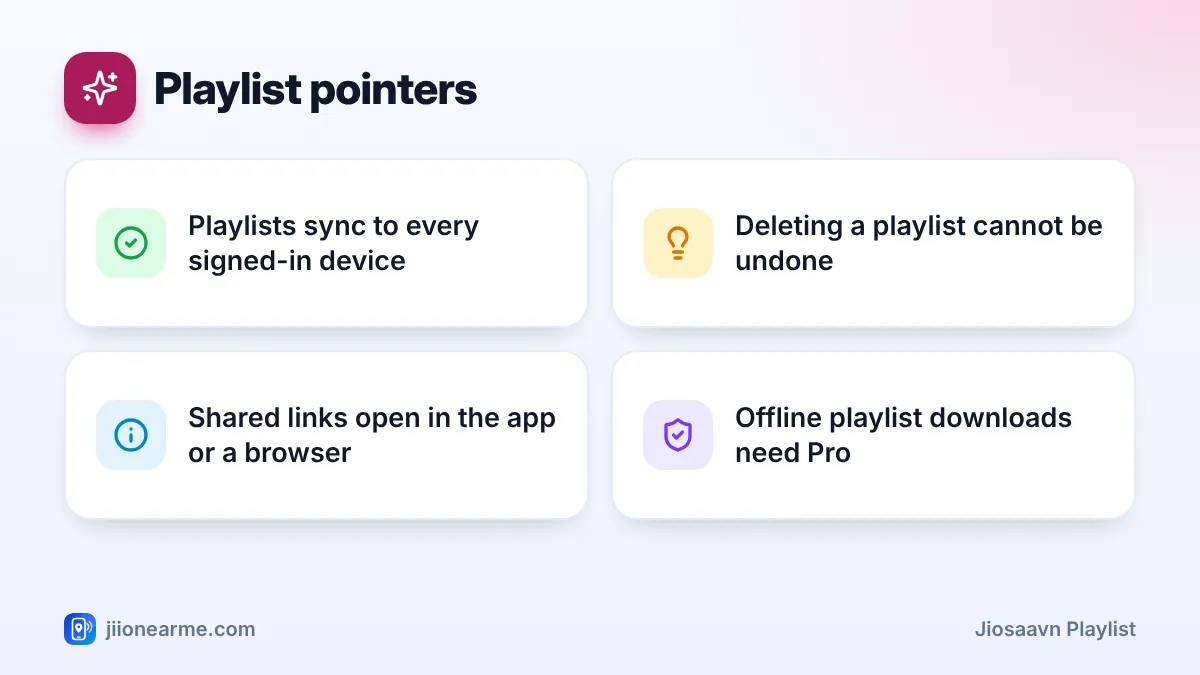
A deleted playlist disappears from your account on every device. JioSaavn does not keep a recycle bin for playlists. If you are unsure, remove the songs you do not want, or rename the playlist, instead of deleting it.
Sharing Your JioSaavn Playlist With Friends
Sharing sends a link to your playlist, not the music files. Your friend taps the link to listen.
- Open the playlist you want to share.
- Tap the Share icon, or the three dots and then Share.
- Pick WhatsApp, Instagram, Telegram, SMS or another app from your phone’s share sheet.
- Choose the contact or group and send. You can also tap Copy link and paste it anywhere.
If your friend has JioSaavn installed, the link usually opens the playlist in the app. If not, it opens in a web browser, where they can play it on the JioSaavn website. They can then save it to their own Library if they want.
| Task | Where to find it |
|---|---|
| Create a playlist | Library > Playlists > Create Playlist |
| Add a song | Song’s three-dot menu > Add to Playlist |
| Reorder songs | Open playlist > Edit > drag the handle |
| Rename or delete | Playlist’s three-dot menu |
| Share a link | Share icon or three-dot menu > Share |
Some app versions show a public or private setting for your playlists. If you see one, check it before sharing widely. Even with a private setting, anyone who receives your link may be able to forward it to others.
Fixing Common Playlist Problems
- Playlist missing on a new phone: make sure you signed in with the same account you used before, whether that is your Jio number, email or another sign-in option.
- A song is greyed out: its rights may have changed or it may not be available in your region. Remove it and pick another version.
- Changes are not showing: pull down to refresh the Library, or close and reopen the app.
- Cannot play offline: saving a playlist for offline listening is a JioSaavn Pro feature. Free users can stream it online.
If the app keeps misbehaving, update JioSaavn from the Play Store or App Store and restart your phone.
Frequently Asked Questions
Is there a limit on how many playlists I can make?
JioSaavn does not show a small everyday limit for most listeners. Very large playlists can take longer to load, so splitting them by mood or occasion is often easier.
Will my friend see changes I make after sharing?
Usually yes. The link points to your playlist, so songs you add or remove later normally show up when your friend opens it again.
Can I make a playlist on the JioSaavn website?
Yes. Sign in on jiosaavn.com with the same account, and your playlists appear there too. Anything you create on the web shows up in the phone app as well.
Do I need JioSaavn Pro to create or share playlists?
No. Free listeners can create, edit and share playlists. Pro adds extras such as ad-free listening and offline downloads.
Final Thoughts
A JioSaavn playlist is a simple way to keep your favourite songs together and pass them on to friends. Create it from Library or from a song, tidy it in Edit mode and share the link in a couple of taps. Just think twice before deleting, because a removed playlist cannot be brought back.
JIo Near me is an independent guide and is not affiliated with Reliance Jio. App menus, plans and policies can change – always confirm current details in the official MyJio app or on jio.com. We will never ask for your OTP, PIN or passwords.
