Most popular songs on JioSaavn come with lyrics that you can read right on the player screen. Play a song, tap the mini player at the bottom to open the full player, then swipe up or tap Lyrics. If the song has synced lyrics, each line lights up as it is sung, so you can follow along easily.
Lyrics are available only for supported tracks, so you will not see them on every song. This guide shows where to find them on Android and iPhone, how synced and plain lyrics differ, and what to check when the lyrics option is missing. Button names can differ slightly between app versions.
- Open the full player, then swipe up or tap Lyrics to see the words.
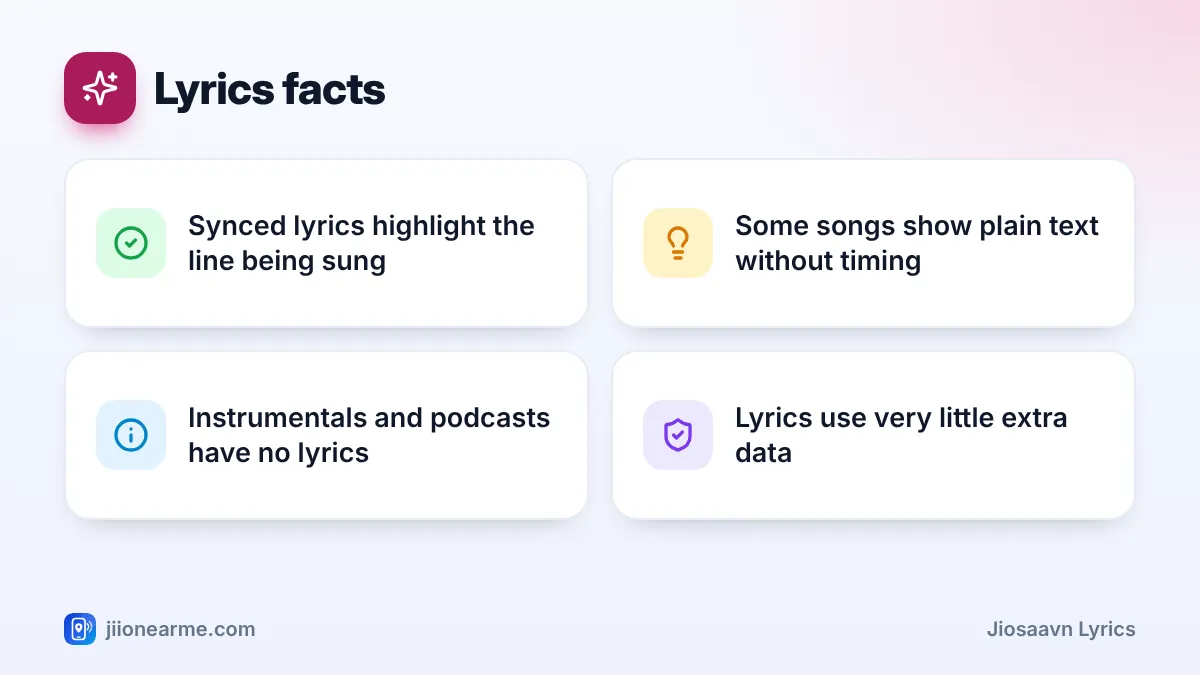
- Synced lyrics scroll on their own and highlight the current line.
- Some songs show plain lyrics without timing, and some have none at all.
- Lyrics are generally available to free and Pro listeners alike.
Where JioSaavn Lyrics Appear on the Player
JioSaavn has two player views. The small bar at the bottom of the screen is the mini player. Tapping it opens the full player, with large album art and all the controls. Lyrics live in the full player.
On most versions, you will see a lyrics card or a Lyrics label below the album art and playback controls. On others, a small lyrics icon sits near the bottom of the player. Either way, the lyrics are one swipe or tap away once the full player is open.
How to View Lyrics While a Song Plays
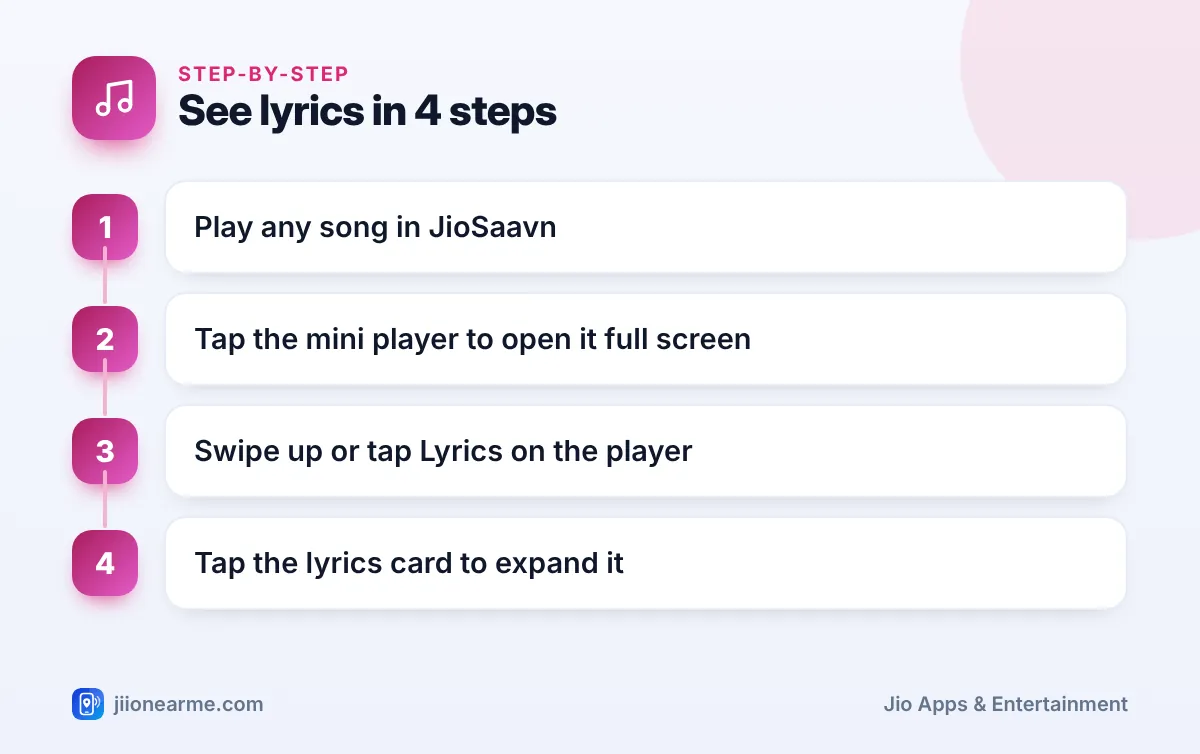
- Open the JioSaavn app and play any song.
- Tap the mini player at the bottom to open the full player.
- Swipe up on the player, or tap Lyrics or the lyrics icon.
- Read along in the lyrics card below the controls.
- Tap the card to open the lyrics in a larger, full-screen view.
- Swipe down or tap the back arrow to return to the normal player.
The lyrics stay with the song. When the next track starts, the card updates to show its lyrics, if they are available.
Your phone may dim or lock while you read lyrics. Before a family karaoke session, increase the screen timeout in your phone’s display settings, then change it back later to save battery.
Synced Lyrics vs Plain Lyrics
You may notice that lyrics behave differently from one song to another. That is because JioSaavn shows two kinds.
Synced lyrics
Synced lyrics are timed to the music. As the singer reaches each line, it is highlighted and the text scrolls up by itself. This makes them easy to follow, even in a song you do not know well. If you skip ahead using the progress bar, the lyrics jump to the matching line.
Plain lyrics
Plain lyrics show the full words of the song as a block of text, with no highlighting. You scroll through them yourself. They are still useful for checking a word you could not catch, but you have to keep your place manually.
| Type | What you see | How you follow along |
|---|---|---|
| Synced lyrics | Current line highlighted and scrolling | Automatically, in time with the music |
| Plain lyrics | Full text with no timing | Scroll yourself while listening |
| No lyrics | No lyrics card, or a message saying none are available | Not available for this track |
Why Some Songs Have No Lyrics
It can be confusing when one song shows lyrics and the next does not. Here are the usual reasons:
- Lyrics rights: song lyrics are licensed separately from the recording. JioSaavn can show them only where it has the right to do so.
- New releases: lyrics for a fresh song may be added some time after the track itself arrives.
- Instrumental tracks: music with no singing has nothing to display.
- Podcasts and spoken audio: episodes do not carry lyrics.
- Lesser-known or older tracks: some regional, devotional or older songs may not have lyrics added yet.
Lyrics coverage keeps growing, so a song without lyrics today may get them later. There is nothing you can switch on to force lyrics for an unsupported track.
A song can have several versions, such as an album version, a film version, an unplugged cover or a remix. The lyrics shown belong to that specific track. If the words do not match what you hear, you may be playing a different version from the one the lyrics were written for.
When the Lyrics Option Is Missing on Every Song
If no song shows lyrics at all, the issue is probably with the app rather than the songs. Try these steps in order:
- Update JioSaavn from the Play Store or App Store. Older versions may not have the newest lyrics layout.
- Check your connection. Lyrics load from the internet, so a weak signal can stop them from appearing.
- Close the app fully and open it again.
- Clear the app cache on Android through Settings > Apps > JioSaavn > Storage. Avoid clearing all data, because that also removes downloaded songs.
- Try a very popular song to check whether lyrics load for well-known tracks.
If lyrics still do not appear, use the help or feedback option inside JioSaavn to report the problem.
Using Lyrics Offline and on Other Devices
If you have JioSaavn Pro and download songs for offline listening, lyrics may not always be stored with the download. When you are offline, the lyrics card might be empty even for a song that shows lyrics online. Play the song once while connected if you want to check.
On a laptop or desktop, the JioSaavn website at jiosaavn.com may also show lyrics for supported songs, either in the player or on the song’s page. The layout differs from the phone app, but the same rights rules apply.
Lyrics are plain text, so loading them uses very little data compared with streaming the song itself.
Frequently Asked Questions
Do I need JioSaavn Pro to see lyrics?
No. Lyrics are generally shown to free and Pro listeners alike. Pro mainly adds extras such as ad-free listening, offline downloads and the highest audio quality.
Can I see lyrics on my lock screen?
The lyrics card appears inside the JioSaavn player. Your lock screen usually shows only the song name, artwork and playback controls.
Can I correct wrong lyrics?
There is no option for listeners to edit lyrics directly. If you spot an error, use the feedback or help option in the app to report it.
Why do synced lyrics run ahead of or behind the song?
This can happen when a different version of the song is playing, or if the track is still loading on a slow connection. Try pausing and playing again, or check that you are on the original version.
Can I see lyrics while using another app?
Lyrics appear only while the JioSaavn player is open on screen. When you switch to another app, the music keeps playing in the background, but the lyrics are hidden.
Conclusion
Seeing JioSaavn lyrics takes just a tap: open the full player and swipe up or tap Lyrics. Synced lyrics move with the music, plain lyrics show the full text, and some tracks simply do not have lyrics yet. Keep the app updated and your screen awake, and you are ready to sing along.
JIo Near me is an independent guide and is not affiliated with Reliance Jio. App menus, plans and policies can change – always confirm current details in the official MyJio app or on jio.com. We will never ask for your OTP, PIN or passwords.
