
You do not need the phone app to listen to JioSaavn at your desk. Open jiosaavn.com in any modern browser, click Log In, sign in with the same account you use on your phone, and your playlists and liked songs appear straight away. A player bar at the bottom of the page lets you play, pause and skip while you work in other tabs.
Listening on a laptop saves your phone battery and keeps your phone free for calls. This guide covers signing in, finding your music, controlling playback and fixing common browser issues. The website layout changes from time to time, so look for similar labels if yours differ.
- Go to jiosaavn.com in Chrome, Edge, Firefox or Safari. There is nothing to install.
- Sign in with the same method you use in the phone app so your playlists carry over.
- Your saved music sits in your Library, often labelled My Library or My Music.
- The player bar at the bottom controls playback, volume, shuffle, repeat and the queue.
What You Need Before You Start
- A laptop or desktop with an up-to-date browser such as Chrome, Edge, Firefox or Safari.
- An internet connection. Home Wi-Fi, JioFiber, Jio AirFiber or a phone hotspot all work.
- Your JioSaavn sign-in details. If you use your Jio number to sign in on the phone, keep that phone nearby to read the OTP.
- Speakers or headphones connected to the computer.
You can browse and play some music without signing in, but signing in is what brings over your playlists, likes and any Pro benefits.
How to Open and Sign In to the JioSaavn Web Player
- Open your browser and type jiosaavn.com in the address bar. Check the spelling carefully so you land on the real site.
- Click Log In at the top right of the page.
- Choose the same sign-in method you use on your phone. If that is your mobile number, type it and request the OTP.
- Read the OTP on your phone and type it into the browser. If you use email or another option, follow the prompts on screen.
- Once signed in, your profile picture or initial appears at the top right.

If you sign in on the web with a different method, such as email instead of your number, you may end up in a separate, empty account. If your playlists are missing, log out and sign in again using the method you chose on your phone.
Finding Your Saved Playlists and Music
Your saved music lives in your Library. On the website, look for My Library, My Music or a similar link in the top menu or under your profile icon.
Inside, you will usually find tabs such as:
- Playlists for the playlists you created and the ones you saved.
- Songs or Liked Songs for tracks you marked with a heart.
- Albums and Artists for what you saved or followed.
- Podcasts or Shows for followed podcasts, if available on the web.
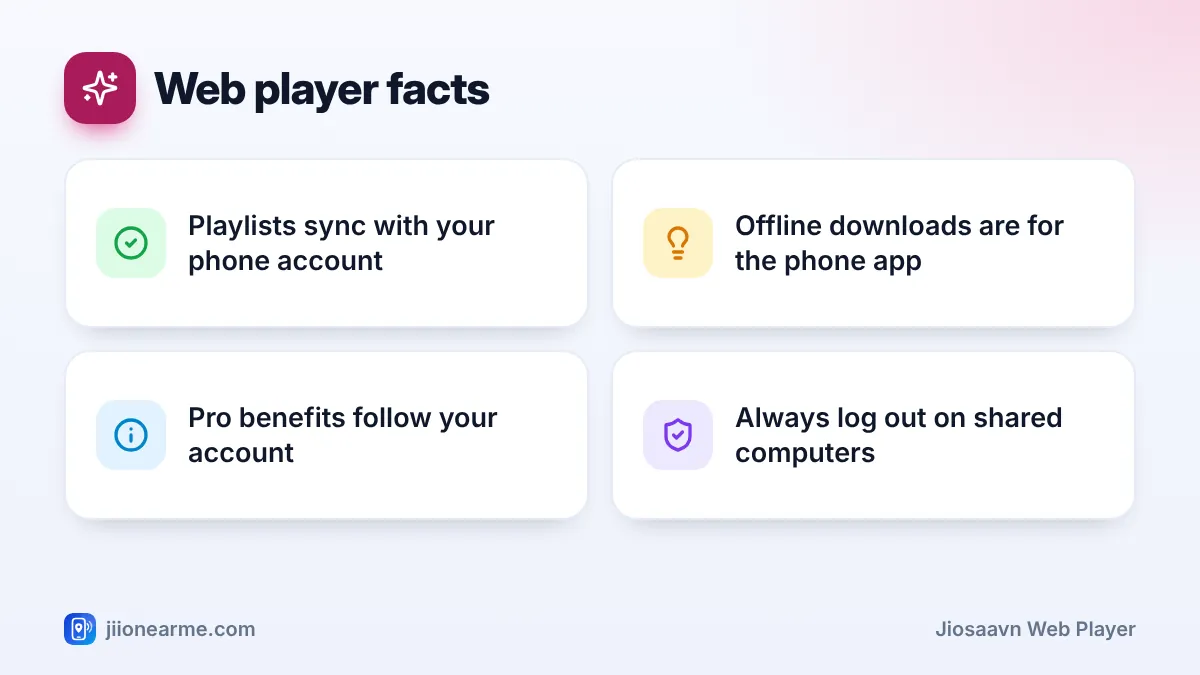
Changes sync both ways. A playlist you create on the laptop appears in the phone app, and songs you like on the phone show up on the web. If something looks out of date, refresh the page.
Searching and discovering music
Use the search bar at the top to find songs, albums, artists or playlists. The Home page shows trending charts and new releases based on your music languages. You can change those languages from the language option near the top of the page.
Controlling Playback While You Work
When a song plays, a player bar stays at the bottom of every page on the site. It usually includes:
- Play and pause in the centre.
- Previous and next to move through the queue.
- Shuffle and repeat to change the play order.
- A progress bar you can click to jump to any part of the song.
- Volume on the right, plus a mute option.
- Queue to see and rearrange what plays next.
You can switch to email, documents or other tabs, and the music keeps playing as long as the JioSaavn tab stays open.
| Point | Phone app | Web player |
|---|---|---|
| Install needed | Yes, from the app store | No, runs in a browser |
| Your playlists and likes | Yes | Yes, with the same account |
| Offline downloads | Yes, with Pro | No |
| Lyrics for supported songs | Yes | May show for supported songs |
| Plays in the background | Yes | While the tab stays open |
Right-click the JioSaavn tab and choose Pin tab so you do not close it by accident. Many keyboards have play, pause and skip keys, and most modern browsers pass these to the tab that is playing. Pressing the spacebar while the JioSaavn page is in focus often toggles play and pause too.
JioSaavn Web Player With Pro and Free Accounts
The web player works for both free and Pro listeners. Free listeners hear ads between songs, just as in the app. If your account has Pro, sign in with that account on the website and your music should be ad-free there too.
Offline downloads are a phone app feature. The website is for streaming while you are online, so you cannot save songs to your computer through it. Be wary of browser extensions or sites that claim to download JioSaavn songs, since they can be unsafe and break the service’s rules.
Fixing Common Web Player Problems
- No sound: check that the browser tab is not muted, the computer’s volume is up and the correct speakers or headphones are selected.
- Music stops when you switch tabs: make sure you did not close the JioSaavn tab, and turn off any browser setting that puts inactive tabs to sleep for this site.
- Cannot sign in: allow cookies for jiosaavn.com, check the OTP is the latest one, and try again after a minute.
- Page will not load or play: turn off ad blockers or other extensions for the site, or try a private window to test.
- Playlists missing: confirm you are signed in with the same account as your phone.
Office and college networks sometimes block music streaming sites. If the site will not open there, follow your organisation’s rules instead of trying to get around them.
On a shared, office or cyber cafe computer, never let the browser save your password, and always click your profile icon and choose Log Out when you finish. Closing the tab alone may keep you signed in for the next person.
Frequently Asked Questions
Is there a separate JioSaavn app for Windows or Mac?
You do not need one. The website works in any modern browser on Windows, macOS or Linux, and it gives you your playlists and Library.
Can I use the web player on a Chromebook or JioBook?
Yes, as long as the device has a modern web browser and an internet connection. Open jiosaavn.com and sign in as usual.
Why does the web player ask for an OTP?
If you sign in with your mobile number, an OTP confirms it is really you. Read it only from your own phone, and never share it with anyone.
Does the web player use much data?
Music streaming uses data steadily. On a laptop connected to home broadband, this rarely matters. On a phone hotspot, choose a lower quality if the site offers it, or listen in shorter sessions.
Summary
The JioSaavn web player is the easiest way to enjoy your music on a laptop or desktop. Open jiosaavn.com, log in with the same account as your phone, open your Library and control everything from the player bar. Pin the tab while you work, and log out every time you use a shared computer.
JIo Near me is an independent guide and is not affiliated with Reliance Jio. App menus, plans and policies can change – always confirm current details in the official MyJio app or on jio.com. We will never ask for your OTP, PIN or passwords.
