Apps on a JioBook come from the app store built into JioOS, usually called JioStore. To install an app, open the store, search for the app, check that it is the right one and click Install. Updates are handled from the same store, and you can remove apps from the app list or from Settings.
JioOS is based on Android, but it does not work exactly like an Android phone. The app choice depends on what is offered in the built-in store for your model and software version. This guide explains how to find, install, update and remove apps, and what to do when an app you want is not available. Labels can vary slightly by version.
- Use the app store built into JioOS to install apps on your JioBook.
- Check the app’s name, developer and description before installing, as similar-looking apps exist.
- Keep apps updated for new features and security fixes.
- Remove apps you do not use to free up storage and keep the laptop responsive.
Where Apps Come From on JioOS
Your JioBook comes with a set of preinstalled apps, which can include Jio apps such as JioTV, JioMeet and JioAICloud, depending on the model and software version. For everything else, there is a built-in app store.
Here is what you should know before you start:
- The store is the main source. Open it from the app list or the taskbar. It is usually labelled JioStore.
- Not every phone app is offered. Some apps you use on an Android phone may be missing or may work differently on a laptop screen.
- The browser is a backup. Many services, such as email, office tools and online classes, also work in the web browser.
How to Install Apps on JioBook from the App Store
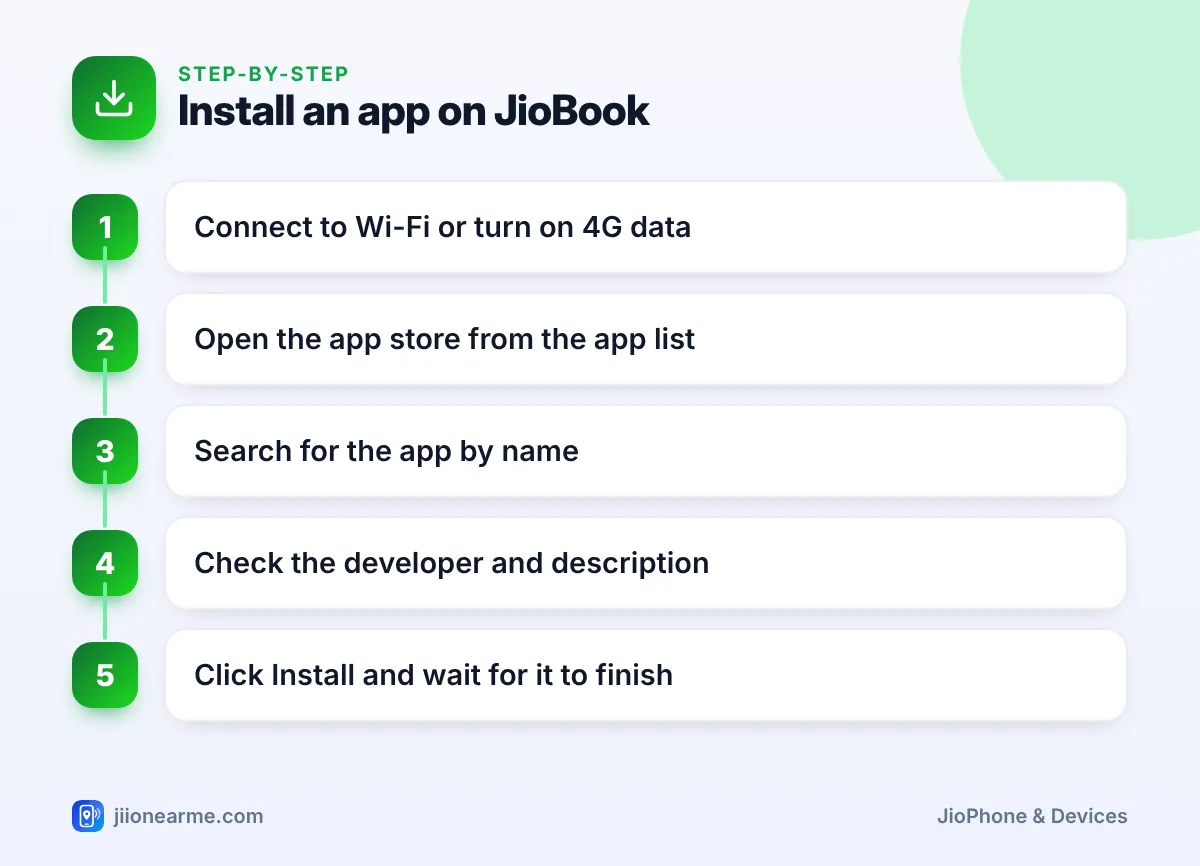
- Get online. Connect to Wi-Fi if possible, because app downloads can be large. You can also use 4G data.
- Open the app store. Click the app list or launcher button and choose JioStore or the store icon.
- Search for the app. Use the search bar at the top and type the app’s name.
- Check the details. Look at the developer name, description, screenshots and permissions. Make sure it is the official app, not a lookalike.
- Install it. Click Install or Get. A progress bar shows the download.
- Open the app. When installation finishes, click Open, or find the app in your app list.
Some apps ask for permissions the first time you open them, such as access to the camera, microphone or files. Allow only what the app genuinely needs. A video-call app needs the camera and microphone, but a calculator does not.
Once you install an app you use daily, add it to the taskbar at the bottom of the screen. Right-click or long-press its icon in the app list, if your version supports it, and look for a pin option. This saves time every day.
Keeping Your Apps Updated
Updates fix bugs, add features and close security gaps. Old app versions can also stop working with online services. Here is how to update:
- Open the app store.
- Look for a section such as My apps, Installed or Updates. It may be in a menu or under your profile icon.
- Click Update next to individual apps, or Update all if the option is there.
- Keep the JioBook connected to Wi-Fi and to the charger during large updates.
Also check for JioOS system updates. Open Settings and look for System update or Software update. System updates can improve app compatibility and fix problems across the laptop.
How to Remove Apps You Don’t Use
Storage on a JioBook is limited, so removing unused apps is good practice.
From the app list
- Open the app list.
- Right-click or press and hold on the app’s icon.
- Choose Uninstall or Remove and confirm.
From Settings
- Open Settings and go to Apps or Applications.
- Select the app you want to remove.
- Click Uninstall and confirm.
Some preinstalled system apps cannot be removed. You may be able to Disable them instead, which hides them and stops them running. Leave core system apps alone if you are unsure what they do.
If an app takes a lot of space, open it in Settings > Apps and look for Storage. Clearing the cache is usually safe. Clearing data resets the app and may sign you out or delete saved items, so use it with care.
Choosing Safe and Useful Apps
The app store may list apps from many developers, and not all of them are equally trustworthy. A few habits keep your JioBook and your data safe:
- Prefer known developers. Choose apps from well-known companies, your school or official government services.
- Read the description and permissions. Be wary of a simple app asking for contacts, SMS or location.
- Skip apps you do not need. Every extra app uses storage and may run in the background.
- Avoid copies of popular apps. Fake apps often use slightly different names or logos.
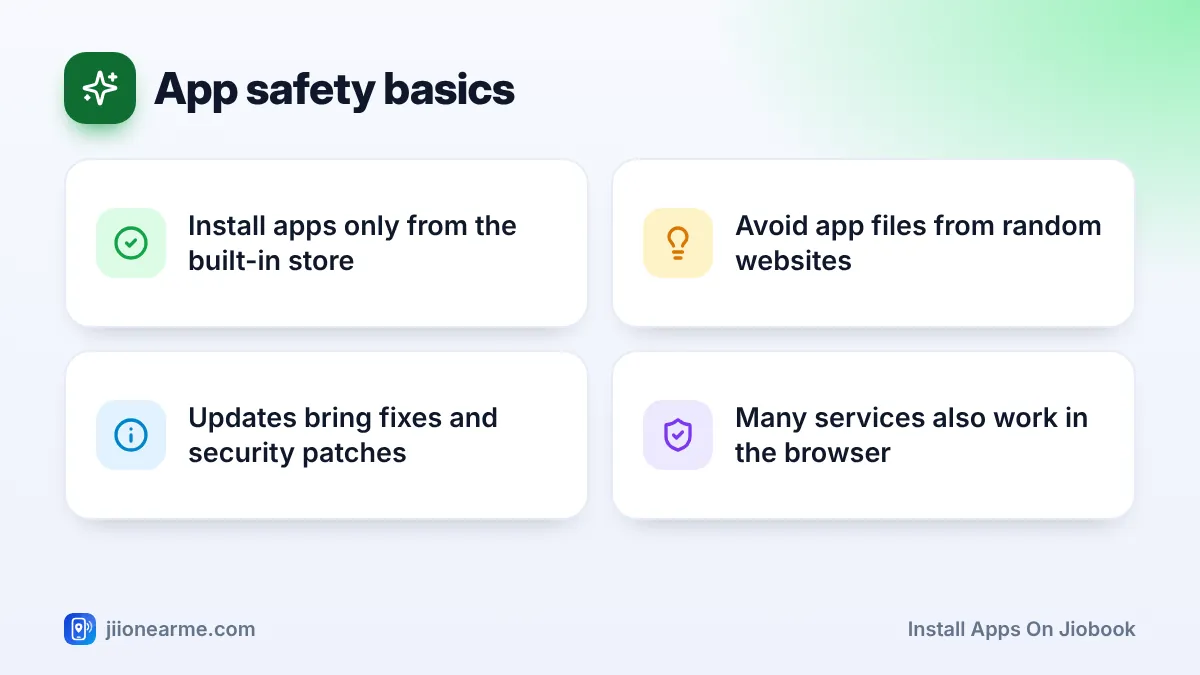
Websites sometimes offer app files (APKs) to download directly. These can contain malware that steals passwords or banking details. Install apps only from the built-in app store. If you suspect fraud after installing something, report it on the national cybercrime portal or call 1930.
When an App Is Not Available
If you cannot find an app in the store:
- Try the website version. Many services, including email, office documents and video meetings, work in the browser. Bookmark the page for quick access.
- Check for a different but official app. Some services offer a lighter version or a separate app for students or businesses.
- Update JioOS. A newer software version may support more apps.
Frequently Asked Questions
Does JioBook have the Google Play Store?
JioBook uses the app store built into JioOS, usually called JioStore, rather than relying on the Play Store as most Android phones do. Check your model’s app store to see which apps are available.
Why can't I find an app I use on my phone?
Not every app is offered in the JioBook’s store. Try the service’s website in the browser, or check again after a JioOS update.
Is it safe to install apps from outside the app store?
It is not recommended. App files from websites can carry malware, so stick to the built-in store.
How do I know if an app needs an update?
Open the app store and check the updates or installed apps section. Apps with an available update show an Update button.
Can I reinstall an app after removing it?
Yes. Search for it again in the app store and install it. Data stored only on the laptop may be lost, so back up important files first.
Summary
Managing apps on a JioBook is simple once you know where to look. Install apps from the built-in store after checking the developer, keep them updated, and remove the ones you no longer use. When an app is missing, the browser often does the job just as well.
JIo Near me is an independent guide and is not affiliated with Reliance Jio. App menus, plans and policies can change – always confirm current details in the official MyJio app or on jio.com. We will never ask for your OTP, PIN or passwords.