Most people only glance at today’s data meter, but MyJio also keeps a day-by-day record of how you used data, calls and SMS. You can open it by tapping the plan card on the home screen or the Usage option, then switching between the data, voice and SMS tabs.
This record is useful when your data runs out too early, when a postpaid bill looks higher than usual, or when you simply want to understand your habits. Here is where to find it and how to make sense of what you see.
- MyJio usage history is reached from the plan card or a Usage option in the app.
- Separate tabs show data, voice and SMS, usually with a day-wise breakdown.
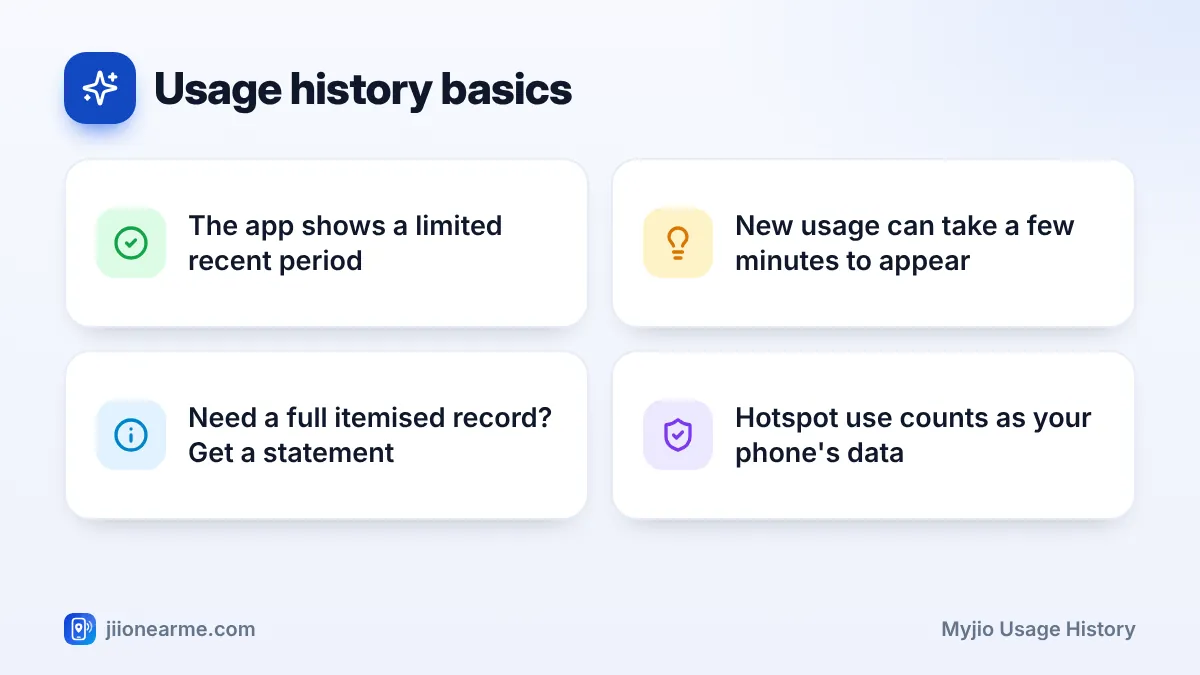
- The app covers a recent period; for a longer itemised record, request a usage statement.
- Comparing busy days with what you did that day helps you find data drains.
Where MyJio Usage History Lives in the App
MyJio has changed its layout a few times, so the exact path depends on your app version. In most versions, you can reach usage history in one of two ways:
- From the home screen: Tap the plan card that shows your data balance. Look for View details, Usage or a similar link.
- From the menu: Open the menu (☰) or your profile section and look for Usage, My Usage or a usage option listed under your mobile number.
If you have linked several accounts, such as a second mobile number or a JioFiber connection, first select the right one using the account switcher at the top. Each account has its own history.
Jio updates the MyJio app often. If you cannot see a button with the exact name used here, look for something with a similar meaning. Updating the app from the Play Store or App Store usually brings the latest layout.
How to Open Your MyJio Usage History
Follow these steps on Android or iPhone. The screens are nearly the same on both.
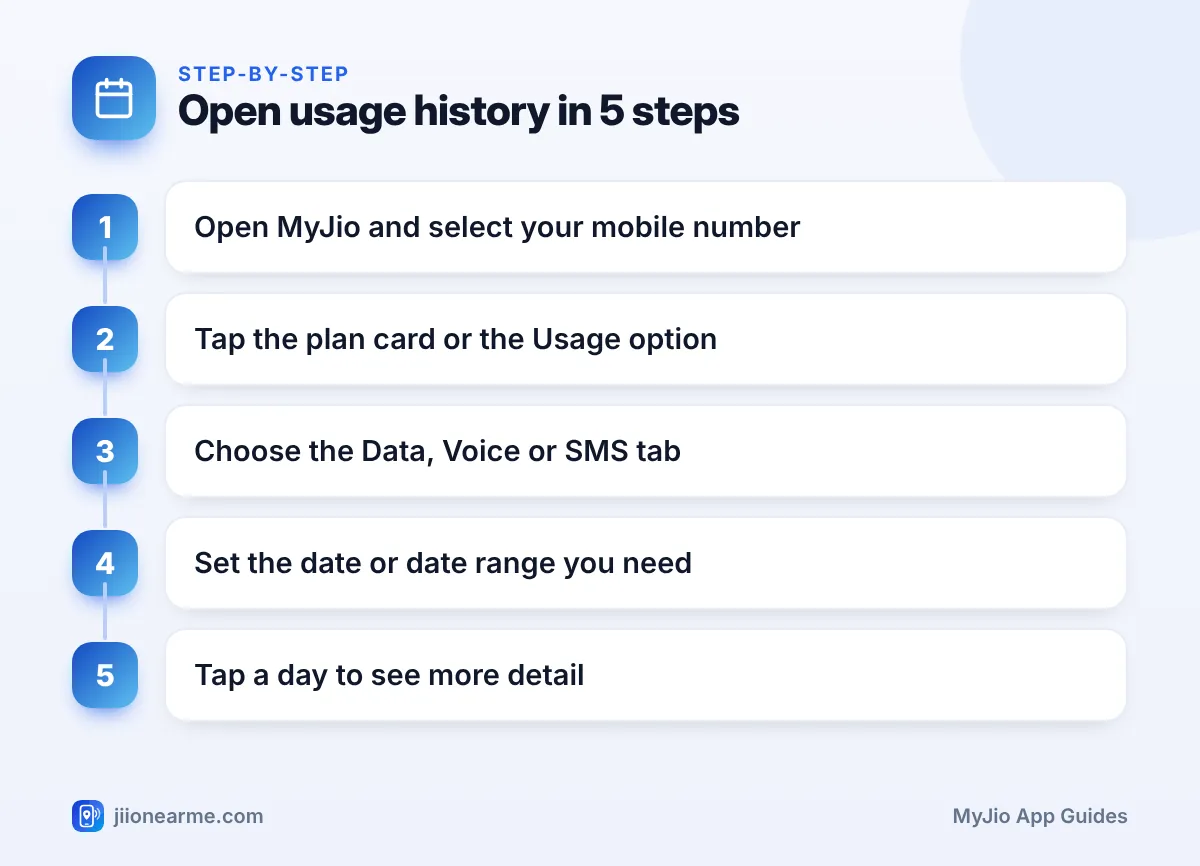
- Open the MyJio app and sign in with your Jio number and OTP if asked.
- Make sure your mobile number is selected at the top of the home screen.
- Tap the plan or data card, or open Usage from the menu.
- Choose a tab: Data, Voice (or Calls) or SMS.
- Pick a single date or a date range using the calendar or filter option.
- Tap a particular day, if the app allows it, to see more detail for that day.
If the screen stays blank, pull down to refresh or check your internet connection. Usage from the last few minutes may not appear right away.
Reading the Day-by-Day Breakdown
Each tab answers a slightly different question. Here is what to look for in each one.
The Data Tab
The data tab shows how much mobile data you used on each day, usually in MB or GB. Days with very high numbers stand out quickly. Some versions also show separate figures for 4G and 5G use if your plan includes Jio True 5G benefits.
Remember that Wi-Fi use at home or office does not appear here. Only data used over your Jio SIM counts.
The Voice Tab
The voice tab shows your calling activity. Depending on the app version, you may see daily totals in minutes or individual call entries. On most prepaid plans with unlimited calling, these entries are for your record only. Postpaid users should watch this tab more closely, as some calls outside the plan may be charged.
The SMS Tab
The SMS tab lists messages sent from your number. If your plan includes a daily SMS limit, this view helps you see how close you are getting to it on busy days.
| Tab | What it usually shows | Most useful for |
|---|---|---|
| Data | Daily mobile data used | Finding heavy-use days |
| Voice | Call minutes or call entries | Checking calling patterns |
| SMS | Messages sent | Tracking daily SMS use |
Usage History vs a Usage Statement
The in-app history is quick and good for a recent look back. However, it covers a limited period, and the exact range can vary by app version.
If you need a detailed, itemised record for a longer period, such as for office claims or to check every single call, request a usage statement instead. MyJio lets you choose a date range and either view the statement or get it on your registered email. A statement lists individual data sessions, calls and messages with dates and times.
Before requesting a statement, add and verify your email ID in your MyJio profile. The statement can only reach you if a working email is saved on your account.
Using Your History to Spot Problems
Usage history is most helpful when you use it to answer a specific question. A few common situations:
- Data runs out by evening: Find the days with the highest use and think about what happened. Video streaming, hotspot sharing, app updates and cloud photo backups are common causes.
- Heavy use at night: If you see data used while you were asleep, check for automatic backups or app updates. Set them to run only on Wi-Fi.
- Calls you do not remember: Compare the dates with your phone’s call log. Someone else may have used your phone, or a family member may have made the calls.
- Postpaid bill seems high: Match the busy days in usage history with the charges on your bill.
If you see calls, SMS or data use that nobody in your home made, act quickly. Call Jio customer care on 198 from your Jio number to raise a complaint. You can also check which mobile connections are registered in your name on the Sanchar Saathi portal.
Frequently Asked Questions
How far back does MyJio usage history go?
The app shows a recent period, and the exact range can differ between app versions. For older or longer periods, request a usage statement from MyJio.
Can I see the numbers I called in MyJio?
Some app versions show individual call entries, while others show only totals. For a complete list with numbers, times and durations, request a usage statement for the dates you need.
Why is today's usage not showing yet?
Usage records reach the app after a short delay. Wait a few minutes, refresh the screen and check again.
Can I check usage history for my family member's number?
Yes, if their number is linked to your MyJio app. Select their number from the account switcher at the top, then open usage history as usual.
Does my JioFiber usage show in the same place?
JioFiber and Jio AirFiber accounts appear as separate accounts in MyJio. Switch to the broadband account to see its own usage details.
Final Thoughts
Your MyJio usage history is the easiest way to understand where your data, calls and SMS are going. Open it from the plan card or the Usage option, pick the right tab, and look for days that stand out.
For quick checks, the in-app history is enough. When you need a full, itemised record, request a usage statement and keep it for your files. If anything looks unfamiliar, contact Jio support without delay.
JIo Near me is an independent guide and is not affiliated with Reliance Jio. App menus, plans and policies can change – always confirm current details in the official MyJio app or on jio.com. We will never ask for your OTP, PIN or passwords.
