Getting a new JioPhone running comes down to five jobs: insert the Jio SIM, charge the battery, switch the phone on, choose your language and set the date and time. The phone shows simple setup screens on its first start, so most of the work is pressing the centre key to confirm each choice.
This guide covers the keypad JioPhone and JioPhone 2, which run KaiOS software. JioPhone Next uses Android-based software and JioBharat phones have their own menus, so some screens will look different on those models. Menu names can also change slightly between software versions, so look for the closest match if a label does not appear exactly as written here.
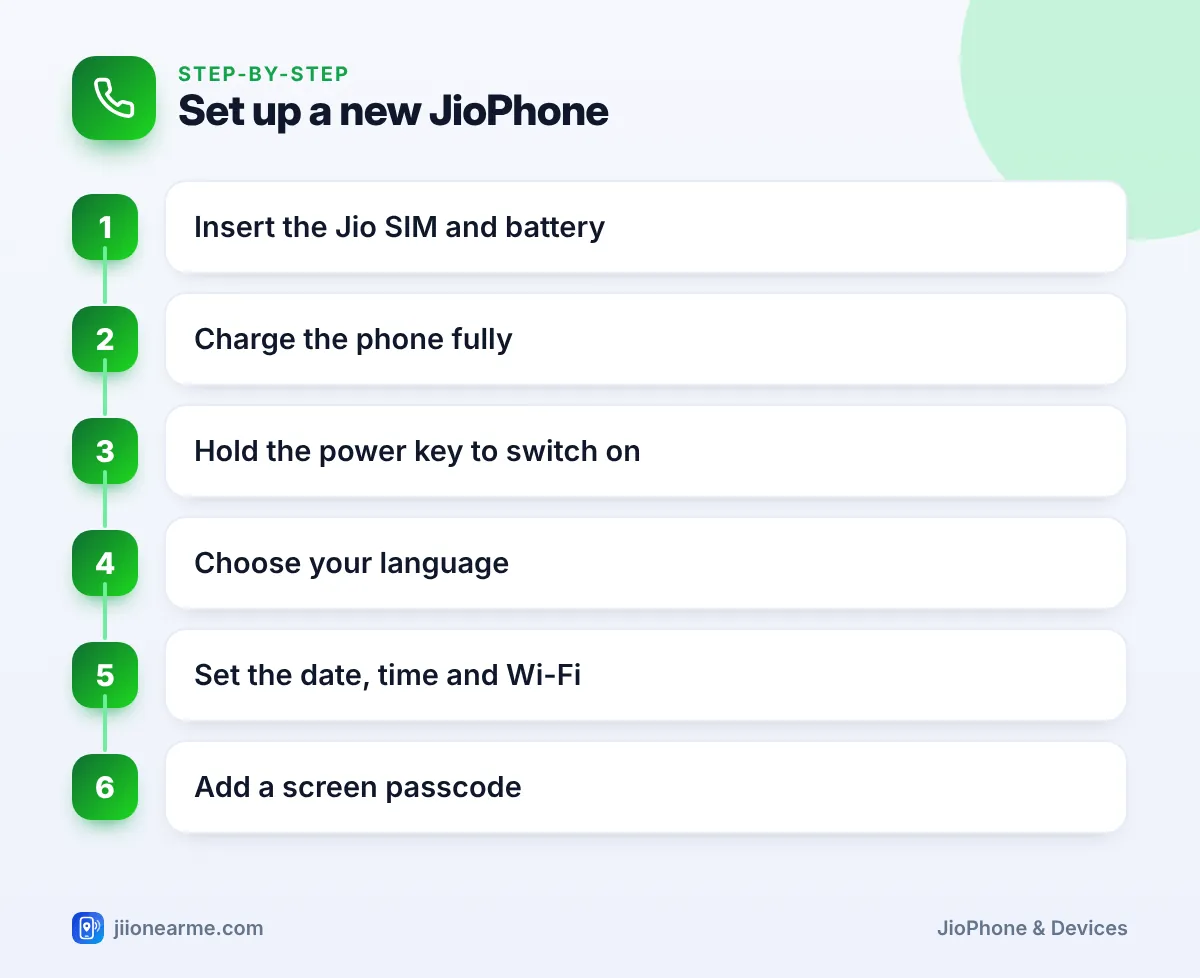
- Insert the Jio SIM and battery with the phone switched off, then charge it fully before heavy use.
- Hold the power key (the red End key on most models) to switch the phone on.
- The first-start screens let you pick a language, date, time and Wi-Fi, and you can change all of these later in Settings.
- Set a screen passcode and test calls, SMS and data on day one.
What You Need Before You Start
Open the box and check what came with the phone, usually the handset, a battery (on models where it is removable), a charger and a short user guide. Keep the box and bill safe for warranty service.
You will also need:
- An active Jio SIM. Keypad JioPhone models are made to work with a Jio SIM. A new SIM is activated after the store completes KYC, so follow the retailer’s instructions and keep the SIM paperwork.
- A microSD memory card (optional). It gives you more space for photos, music and videos.
- Your home Wi-Fi name and password (optional). These are handy if you want to save mobile data at home.
Step 1: Insert the Jio SIM, Memory Card and Battery
Always do this with the phone switched off.
- Turn the phone over and find the small notch at the edge of the back cover. Lift the cover gently with your fingernail.
- If a battery is already inside, lift it out using the small gap near its edge.
- Find the SIM slot. A small printed icon near the slot shows which way the SIM should go in.
- Slide the Jio SIM in with the gold contacts facing down and the cut corner matching the outline. Push gently until it sits flat.
- If you have a memory card, slide it into the microSD slot in the same careful way.
- Place the battery back so its gold contacts line up with the pins in the phone, then press the back cover until it clicks into place all around.
If the SIM does not slide in easily, take it out and check the direction again. Forcing it can bend the pins inside the slot. If it still won’t fit, ask the store for help.
Step 2: Charge the Battery Before First Use
Plug the charger into the phone’s charging port and into a wall socket. A battery icon appears on the screen when charging starts. Let it charge until the icon shows full before you start using the phone heavily.
A few simple habits help the battery last longer:
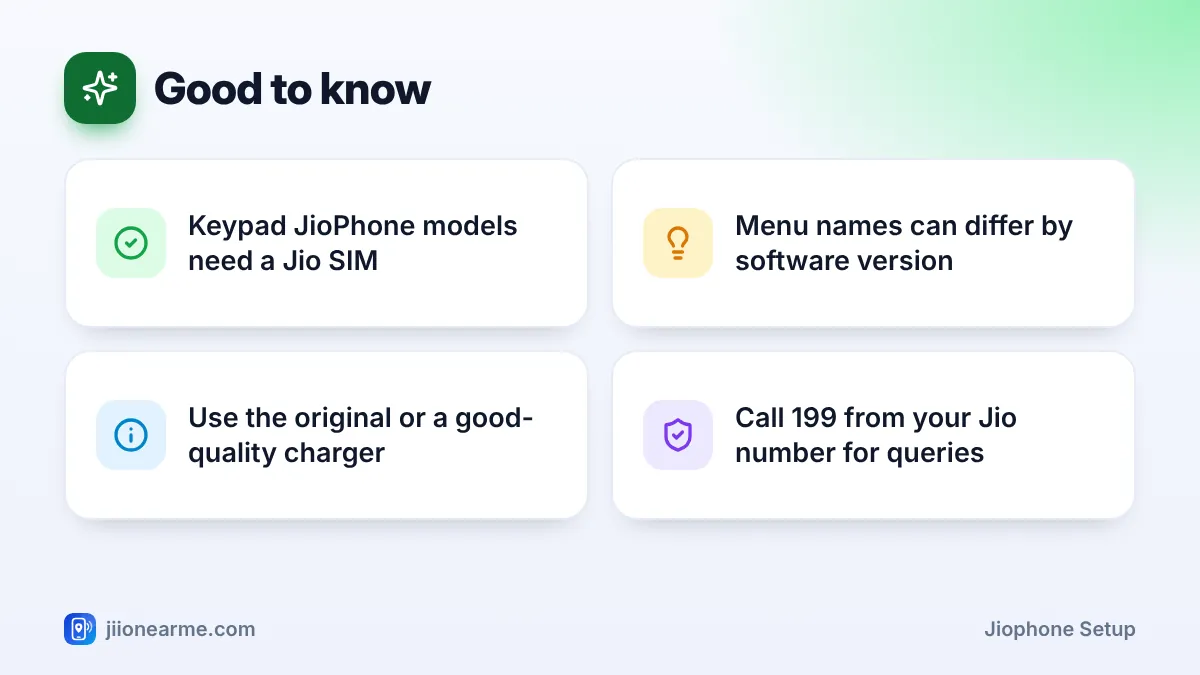
- Use the charger that came in the box, or a good-quality one from a known brand.
- Charge on a hard, dry surface, not on a pillow or bed.
- If the screen stays blank after about 15 minutes on charge, try another socket. If it still shows nothing, contact the store or an authorised service centre.
Step 3: Switch On and Complete the JioPhone Setup Screens
Switch on the phone
Press and hold the power key for a few seconds until the logo appears. On most JioPhone models, the red End Call key doubles as the power key. The first start can take a little longer than usual.
Learn the keys you will use most
Before you go further, get familiar with these keys:
- Navigation key: the large key in the middle that moves up, down, left and right.
- Centre key: the button in the middle of the navigation key. It selects or confirms.
- Left and right soft keys: the two keys just below the screen. Their current job is written at the bottom corners of the screen, such as Back, Next or Options.
Choose your language
The first screen usually asks for a language. Move up or down with the navigation key, highlight the language you read most comfortably and press the centre key. Then press the soft key marked Next.
Set the date and time
On the next screens, the phone normally picks up the date and time from the Jio network automatically. Leave the automatic option on if it is offered. If the time looks wrong, switch off the automatic option and set the date, time and time zone yourself. India uses Kolkata time.
Finish the remaining screens
Depending on your software version, you may see screens to join Wi-Fi, import contacts or accept terms of use. Wi-Fi and contacts are optional. You can skip them now and set them up later from Settings.
Basic Preferences Worth Setting on Day One
Once you reach the home screen, press the centre key to open the app menu and find Settings. Settings is divided into tabs across the top of the screen. Press left or right on the navigation key to move between tabs.
| Setting | Where to look | Why it helps |
|---|---|---|
| Screen passcode | Privacy & Security tab | Keeps your messages and photos private |
| Ringtone and volume | Personalization tab, under Sound | So you don’t miss calls |
| Brightness and screen timeout | Personalization tab, under Display | Saves battery |
| Mobile data on or off | Network & Connectivity tab | Controls when you use data |
| Language | Personalization tab | Lets you change it any time |
Names can differ slightly by software version.
Choose a passcode you will remember, and avoid simple ones like 1234 or your birth year. If you forget it, you may need help from a service centre to get back into the phone.
Check That Your Jio SIM and Network Work
After setup, look at the top of the screen. You should see signal bars and a 4G or VoLTE indicator. Then run three quick checks:
- Make a short test call to a family member.
- Send a test SMS.
- Open an app that needs the internet, such as the browser, to check mobile data.
If you see No SIM or no signal, switch off the phone, reinsert the SIM and switch it on again. A newly bought SIM can take some time to activate after KYC. If it still does not work, call the Jio toll-free number 1800-889-9999 from another phone, or call 199 from your Jio number once it is active.
JioPhone users have their own set of plans. Check the current JioPhone plans in the MyJio app or on jio.com before you recharge, so you choose one that works with your phone.
Common First-Day Mistakes to Avoid
- Skipping the passcode, which leaves your messages open to anyone who picks up the phone.
- Downloading large apps or videos on mobile data before checking your plan’s daily data.
- Throwing away the bill or box, which you may need for warranty claims.
- Sharing OTPs that arrive on your new number. Genuine Jio staff will never ask for them.
Frequently Asked Questions
Why does my new JioPhone show no network?
The SIM may still be activating after KYC, or it may not be seated properly. Restart the phone, reinsert the SIM and wait a while. If the problem continues, call 1800-889-9999 from another phone.
Can I use a SIM from another network in a JioPhone?
Keypad JioPhone models are designed to work with a Jio SIM. A SIM from another operator is not expected to work in them.
How do I change the language after setup?
Open Settings, go to the Personalization tab and select Language. Pick the new language and confirm with the centre key.
Do I need a Google account to use a JioPhone?
No. You can make calls, send SMS and use most built-in apps without one. A Google account is mainly useful for things like importing contacts from Gmail.
How long should the first charge take?
It depends on the charger and the starting charge. Leave it plugged in until the battery icon shows full.
Wrapping Up
Setting up a JioPhone is short and mostly guided. Insert the SIM and battery carefully, charge fully, then follow the first-start screens for language, date and time. Spend five more minutes on a passcode and a test call, and your phone is ready for everyday use.
JIo Near me is an independent guide and is not affiliated with Reliance Jio. App menus, plans and policies can change – always confirm current details in the official MyJio app or on jio.com. We will never ask for your OTP, PIN or passwords.