Yes, you can use a spare router to extend JioFiber Wi-Fi, and it often works better than a plug-in extender. Run a LAN cable from a free port on the JioFiber router to the spare router, then set the spare router to Access Point mode, or turn off its DHCP server and connect it LAN-to-LAN. Your devices then stay on one network, with no double NAT and no clashing IP addresses.
The JioFiber router remains the main router throughout. It handles the fibre connection and your plan, so you do not replace or bypass it. Router menus differ by brand, so use the steps below alongside your spare router’s manual.
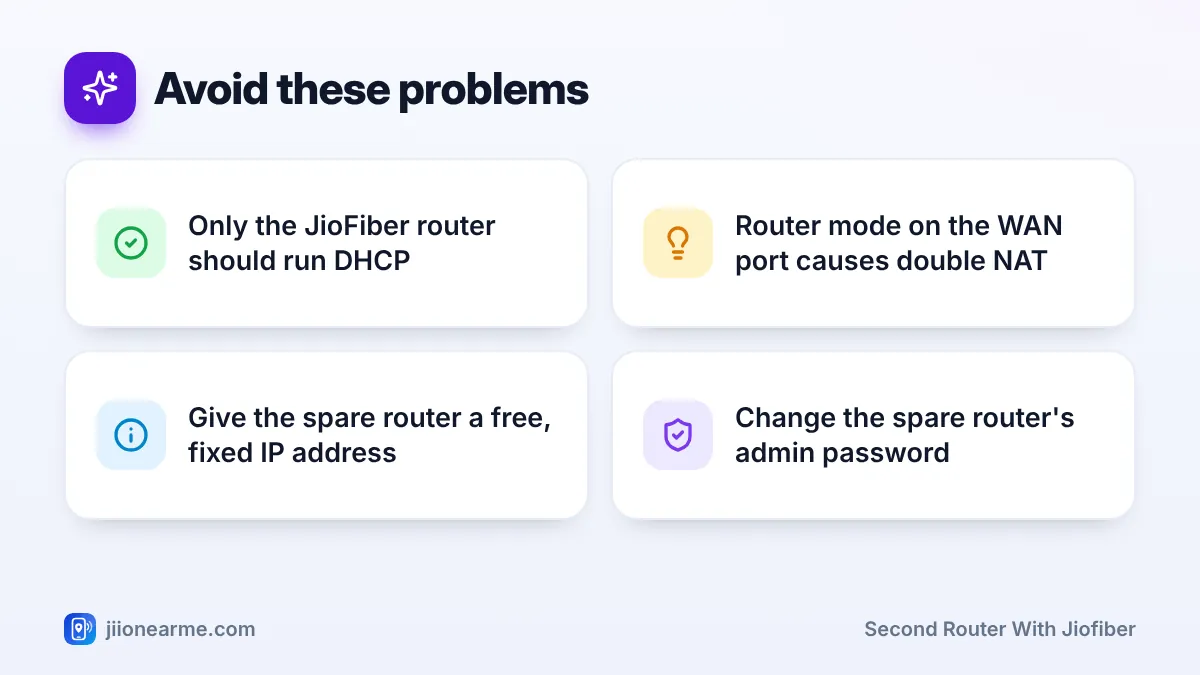
- Connect the spare router to JioFiber with a LAN cable for full-strength Wi-Fi in far rooms.
- Use the spare router’s Access Point mode, or turn off its DHCP and use a LAN port.
- Router mode on the WAN port creates double NAT, which can upset gaming, casting and printers.
- Give the spare router a fixed address in the JioFiber range that no other device uses.
Why Use a Second Router with JioFiber
Many homes have an old router lying around from a previous connection. Instead of buying an extender, you can reuse it as a wired access point in a room the JioFiber Wi-Fi does not reach well.
A wired access point gets its connection through the cable, not over the air. So it does not lose speed the way a wireless extender does, and it can give near-router speeds in the far room. The only real effort is running a cable there.
Router Mode vs Access Point Mode
Every router hands out private addresses to your devices and translates traffic to the internet. This translation is called NAT. If your spare router also does this, your devices sit behind two routers, which is called double NAT.
Double NAT often still lets you browse, but it can cause problems:
- Phones on one router cannot cast to a TV on the other.
- Printers and smart home devices stop showing up.
- Game consoles report a strict or moderate NAT type.
- Remote viewing of CCTV cameras or port forwarding stops working.
Access point mode avoids this. The spare router acts only as a Wi-Fi antenna and a network switch, while the JioFiber router handles all addresses.
| Setup | Cable goes to the spare router’s | Who hands out IP addresses | Result |
|---|---|---|---|
| Router mode | WAN or Internet port | Both routers | Double NAT, two separate networks |
| Built-in Access Point mode | Port named in its manual | JioFiber router only | One network |
| Manual setup with DHCP off | A LAN port | JioFiber router only | One network |
What You Need Before You Start
- A working spare router. Dual-band (2.4 GHz and 5 GHz) is best. Check its manual for an Access Point or AP mode.
- A LAN cable long enough to reach the far room. Cat5e or Cat6 is fine.
- A laptop or phone to open the spare router’s settings.
- The JioFiber router’s address. Open the Wi-Fi details on a connected device and look for Router or Gateway. On many JioFiber routers this is 192.168.29.1, but check yours.
- The spare router’s login details, usually printed on its label.
How to Set Up a Second Router as an Access Point
Method 1: Use the built-in Access Point mode
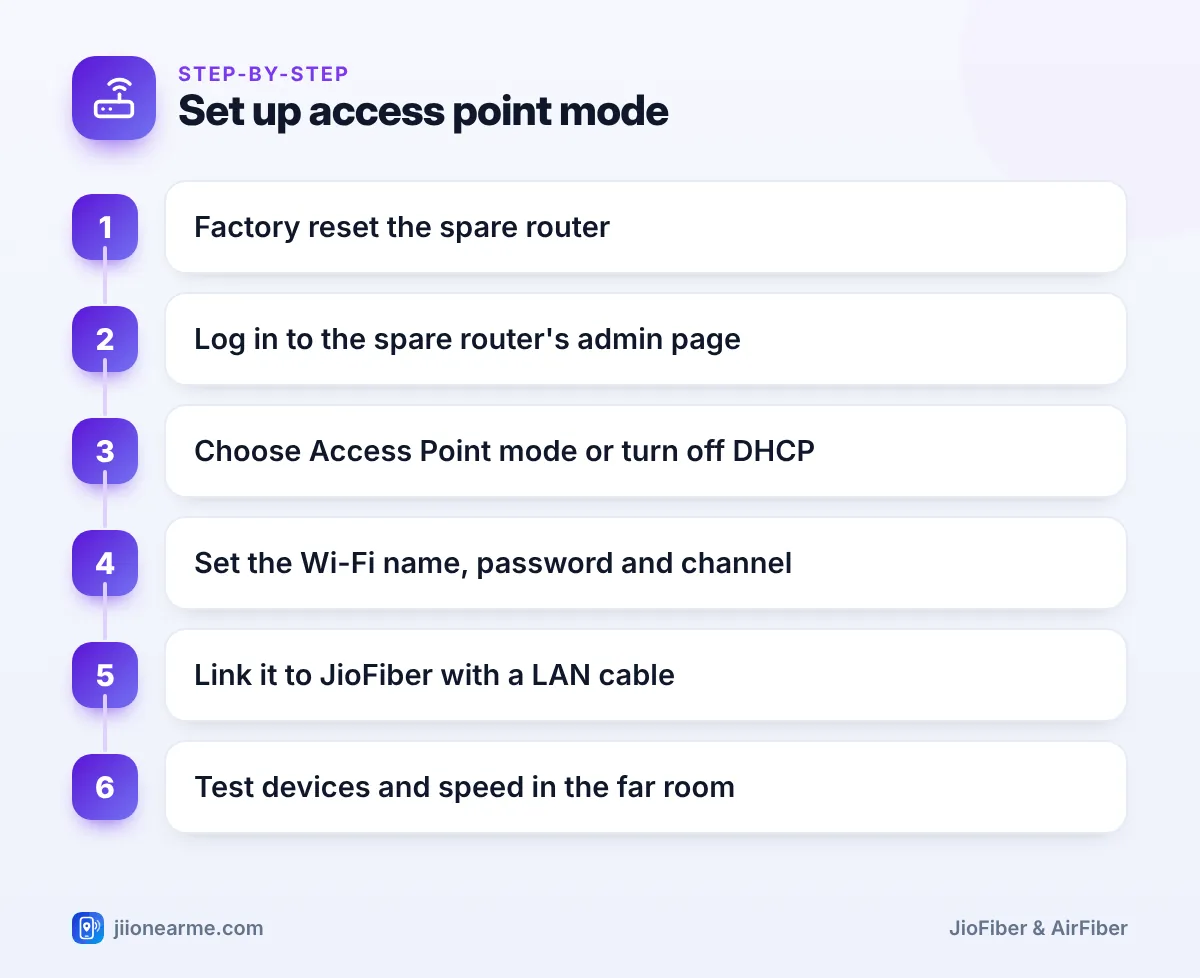
- Factory reset the spare router using its reset button, as its manual describes.
- Connect your laptop or phone to the spare router by cable or its default Wi-Fi. Do not connect it to JioFiber yet.
- Open its admin page using the address on its label, log in and set a new admin password.
- Find the mode setting, often called Operation Mode or Working Mode, and choose Access Point. The router may restart.
- Set the Wi-Fi name, password and security for both bands.
- Connect a LAN cable from any free LAN port on the JioFiber router to the port the manual names for AP mode.
- Reconnect your devices and check that they get addresses in the same range as JioFiber, for example 192.168.29.x.
Method 2: Manual setup with DHCP turned off
Use this if your router has no AP mode.
- Reset the spare router and log in as above.
- Change its LAN IP address to a free one in the JioFiber range. The first three blocks must match your JioFiber gateway, and the last number should be one no other device uses. If you can see the JioFiber router’s DHCP range in its settings, pick an address outside it.
- Save, then log in again at the new address.
- Turn off the spare router’s DHCP server.
- Set its Wi-Fi name, password and security.
- Connect the cable from a JioFiber LAN port to a LAN port on the spare router. Leave its WAN port empty.
Stick a small label on the spare router with its new IP address. Its old default address will stop working, and you will need the new one to change settings later.
Wi-Fi Settings That Prevent Interference
Two routers broadcasting in the same space can interfere with each other if both use the same channel.
- 2.4 GHz channel: choose 1, 6 or 11, and pick a different one from the JioFiber router.
- 5 GHz channel: choose a different channel from the main router, or leave it on auto.
- Network name: using the same name and password lets phones switch between routers, though switching may be slower than on a mesh system. Separate names give you more control.
- Security: use WPA2-Personal (AES) or WPA3. Never leave the network open, and turn off WPS on the spare router if you do not need it.
- Firmware: update the spare router if an update is available from its maker.
Testing and Fixing Common Problems
Once connected, test a phone or laptop in the far room. Check that the internet works and run a speed test.
- No internet through the spare router: with the manual method, make sure the cable is in a LAN port, not WAN. Also try another cable.
- Devices get a different address range: the spare router’s DHCP is still on. Turn it off.
- Cannot open the spare router’s settings: use the new IP address you set, from a device on your home network.
- Speed seems capped below 100 Mbps: many older routers have 10/100 ports. Check the specifications. Such a router suits basic browsing, but not full plan speed.
Do not try to replace the JioFiber router with your own, and avoid changing its main internet settings. It manages your fibre connection. If something stops working, undo your changes and contact Jio by calling 198 from a Jio number.
Frequently Asked Questions
Will Jio customer care help set up my own router?
Jio support can help with the JioFiber router and connection. For the spare router’s menus and modes, its manual or the maker’s support pages are the better source.
Can I connect the second router over Wi-Fi instead of a cable?
Some routers offer a repeater or client mode, but that behaves like an extender and loses speed. A cable gives the most reliable result.
Which port on the JioFiber router should I use?
Any free LAN or Ethernet port on the JioFiber router works. Do not use the phone port meant for the landline.
Why does my game console show strict NAT?
A second router running in router mode is a common cause, because it creates double NAT. Switching it to access point mode usually fixes this.
Can both routers use the same Wi-Fi name?
Yes. Use the same name, password and security type on both. Phones will switch between them, though not always as quickly as on a mesh system.
Wrapping Up
A second router with JioFiber works best as a wired access point. Connect it by cable, use Access Point mode or turn off its DHCP, and give it a free fixed address. This keeps every device on one network and avoids double NAT, while the JioFiber router stays in charge of your connection.
JIo Near me is an independent guide and is not affiliated with Reliance Jio. App menus, plans and policies can change – always confirm current details in the official MyJio app or on jio.com. We will never ask for your OTP, PIN or passwords.
