The fastest way to move contacts to a JioPhone depends on where they are saved right now. If they sync with a Google account, import them over the internet. If they are only on your old phone, export them to a memory card or send them by Bluetooth. If they are on your Jio SIM, simply put that SIM in the JioPhone.
This guide is for keypad JioPhone models that run KaiOS. On these phones, the import options live inside the Contacts app under Options, then Settings, then Import contacts. Labels can differ slightly by software version, and the steps on your old phone depend on its brand, so look for the closest matching option.
- Contacts on a Jio SIM appear on the JioPhone once you insert that SIM.
- A contacts file (.vcf) on a memory card works with almost any old phone.
- Gmail import pulls in contacts from a Google account over the internet.
- Bluetooth suits a few contacts or an old phone without a memory card slot.
Pick the Right Method for Your Old Phone
| Where your contacts are now | Best method | What you need |
|---|---|---|
| On your Jio SIM | Use the SIM | The same Jio SIM |
| Android phone synced with Google | Gmail import | Internet and your Google sign-in |
| Android phone without Google sync | Memory card | A microSD card or a computer |
| Older keypad phone | Bluetooth or memory card | Bluetooth on both phones |
If you are not sure whether your old Android phone syncs contacts with Google, open its Contacts app and check which account the contacts are saved under.
Method 1: Use Contacts Saved on Your Jio SIM
Keypad JioPhones work with a Jio SIM, so this method only helps if your old phone also used a Jio SIM.
- Switch off both phones and move the Jio SIM into the JioPhone.
- Switch on the JioPhone and open Contacts.
- SIM contacts usually appear in the list automatically. If they don’t, open Options, go to Settings and look for an import option for the SIM.
SIM cards store only basic details, mostly names and numbers, and some long names may be shortened. If most of your contacts were saved on the old phone itself, use one of the other methods.
Method 2: Transfer Contacts to JioPhone with a Memory Card
This works with nearly every phone, because almost all phones can save contacts as a .vcf file.
On your old Android phone
- Open the Contacts app and find the menu, usually three dots or a settings icon.
- Look for Import/export, Export to file or Manage contacts (the name depends on the brand).
- Choose to export all contacts to a .vcf file and save it on the memory card.
- Take the memory card out of the old phone. If the old phone has no card slot, copy the file to a computer, then copy it to the JioPhone’s card.
On your JioPhone
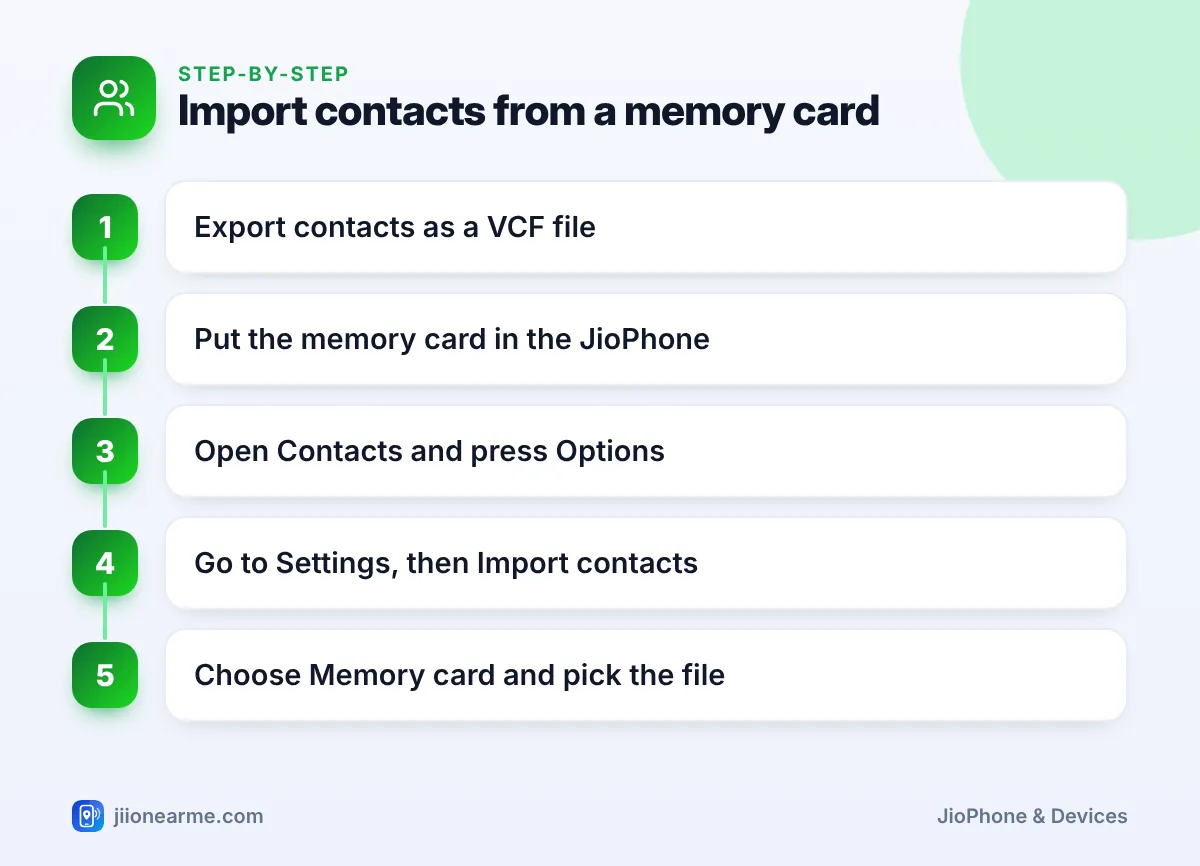
- Switch off the JioPhone, insert the memory card and switch it on again.
- Open Contacts and press the Options soft key.
- Select Settings, then Import contacts.
- Choose Memory card and select the contacts file.
- Wait for the import to finish, then scroll through the list to check.
Leave the .vcf file on the memory card after importing. It works as a ready backup if you ever need to reset the phone or move contacts again.
Method 3: Import Contacts from Your Google Account
If your old Android phone saved contacts to a Google account, you can pull them straight onto the JioPhone.
- Connect the JioPhone to Wi-Fi or turn on mobile data.
- Open Contacts, press Options and go to Settings.
- Select Import contacts, then choose Gmail (or Google).
- Sign in with your Google account email and password. If you use two-step verification, Google may ask you to confirm on another device or enter a code.
- Allow access to contacts when asked, and wait for the import to finish.
This is usually a one-time copy, not a live sync. Contacts you add on another device later may not appear on the JioPhone automatically, so repeat the import if you need to.
Type your Google password directly on your JioPhone and nowhere else. Never share your password or sign-in codes with anyone who offers to transfer contacts for you, including shop staff or callers.
Method 4: Send Contacts Over Bluetooth
Bluetooth is handy for older keypad phones or when you only need a few contacts.
- On the JioPhone, open Settings, go to the Network & Connectivity tab and turn on Bluetooth. Make the phone visible to other devices if the option is there.
- Turn on Bluetooth on the old phone too, and pair the two phones. Confirm the matching code on both screens if asked.
- On the old phone, open Contacts, select the contacts you want and choose Share or Send, then Bluetooth. Pick the JioPhone from the list.
- On the JioPhone, accept the incoming file.
- Open the received file from the notification and choose to import the contacts.
If the file does not open directly, it is usually saved in the phone’s storage or on the memory card. Then use Import contacts with the Memory card option, as in Method 2.
After the Transfer: Tidy Up and Back Up
Once your contacts are in, spend a few minutes checking them:
- Look for duplicates. If you used two methods, some names may appear twice. Delete the extra copies.
- Check important numbers. Make sure family and emergency contacts are correct.
- Use clear names. Simple names make it easier to call people using Google Assistant.
- Export a backup. In Contacts, go to Options, Settings, then Export contacts and save a copy to the memory card.
If your old phone is an iPhone, the easiest route is often to sync its contacts to a Google account first and then use the Gmail import method on the JioPhone.
Frequently Asked Questions
Can I put my old non-Jio SIM in the JioPhone to copy contacts?
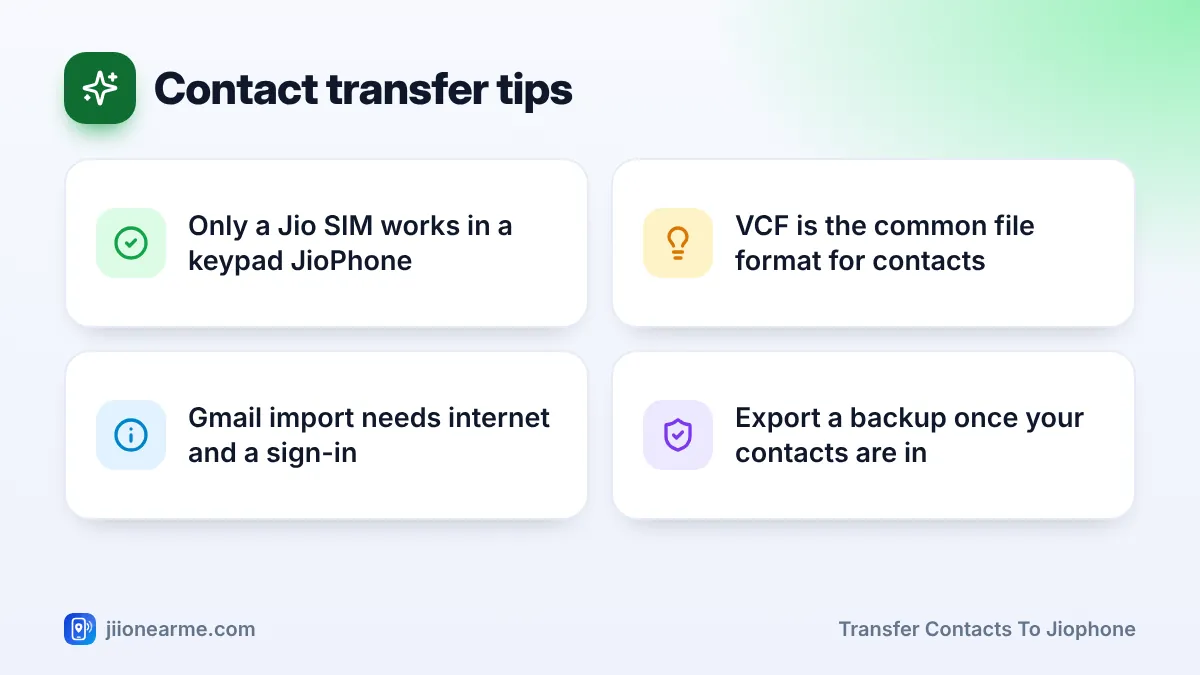
No. Keypad JioPhones work with a Jio SIM, so a SIM from another operator is not expected to work. Use the memory card, Gmail or Bluetooth method instead.
What is a .vcf file?
It is a standard contacts file, also called a vCard, that most phones can create and read. One file can hold all your contacts.
Will importing contacts delete the ones already on my JioPhone?
No. Importing adds contacts to your existing list. You may need to remove duplicates afterwards.
Why are some contacts missing after the transfer?
They may have been saved under a different account or on the SIM of the old phone. Check where they were stored on the old phone and import from that source too.
Conclusion
To transfer contacts to JioPhone, start with where your contacts live today. Use the Jio SIM if they are on it, Gmail import if they sync with Google, and a memory card or Bluetooth for everything else. Finish by exporting a backup file, so you never have to type your contacts again.
JIo Near me is an independent guide and is not affiliated with Reliance Jio. App menus, plans and policies can change – always confirm current details in the official MyJio app or on jio.com. We will never ask for your OTP, PIN or passwords.