Most of what matters on your old phone can move to a JioPhone Next with three tools: your Google account for contacts, a memory card, cable or Quick Share for photos, and WhatsApp’s own backup for chats. If your old phone runs Android, most of the work is signing in with the same Google account and restoring a backup.
The exact steps depend on what you’re moving from: an Android phone, a keypad JioPhone or an iPhone. This guide covers each case. Do the backups on the old phone first, and leave it untouched until you’ve checked everything on the new one. Menu labels vary between phones and app versions, so look for the closest match.
- Sync contacts to your Google account on the old phone, then sign in with the same account on the JioPhone Next.
- Photos and videos move easily by microSD card, USB cable through a computer, or Quick Share.
- Back up WhatsApp to Google Drive and restore it using the same number and Google account.
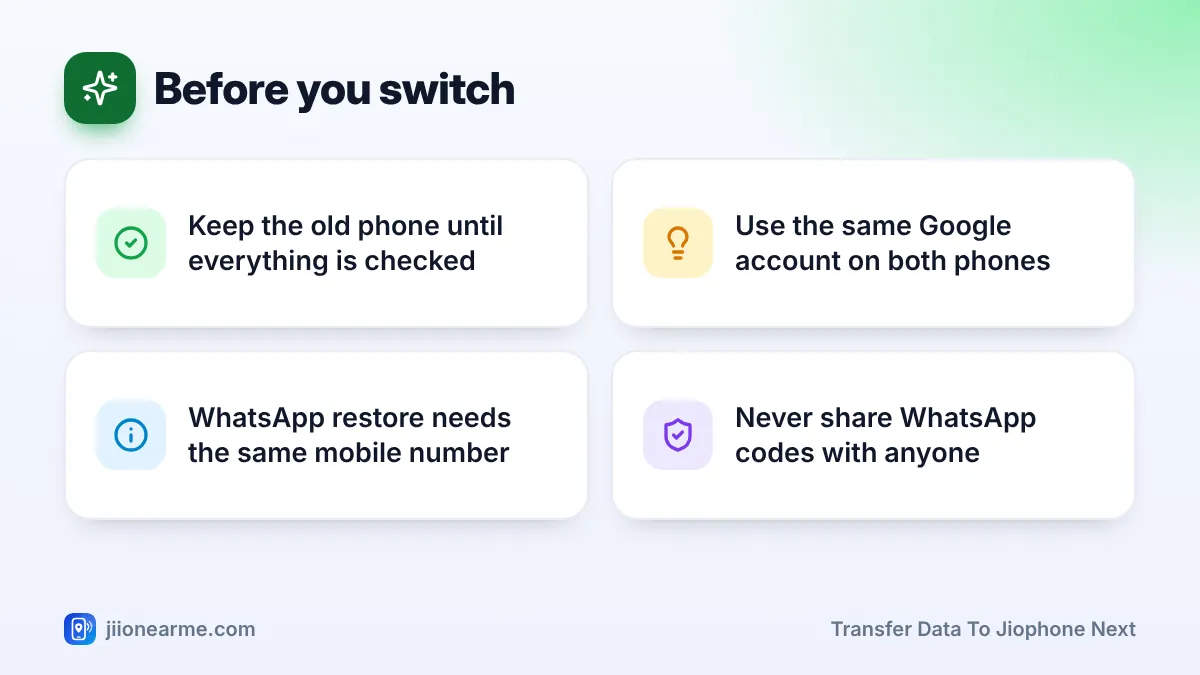
- Keep the old phone as it is until you’ve confirmed everything arrived.
Ways to Transfer Data to JioPhone Next
| What to move | From an Android phone | From a keypad JioPhone | From an iPhone |
|---|---|---|---|
| Contacts | Google account sync | Export to memory card | Export a vCard file via iCloud |
| Photos and videos | Card, cable or Quick Share | Memory card | Computer and cable |
| WhatsApp chats | Google Drive backup or Transfer chats | Usually can’t be moved | WhatsApp’s official iPhone-to-Android process |
| Music and documents | Card or cable | Memory card | Computer and cable |
Remember that the JioPhone Next has limited internal storage. Before copying lots of videos, add a microSD card and keep large media there.
Moving Your Contacts First
From an Android phone
- On the old phone, open Settings > Accounts (or Google) and tap your Google account.
- Open Account sync and make sure Contacts is turned on.
- Open the Contacts app and check where your contacts are saved. Contacts kept only on the phone or SIM won’t sync. Most contacts apps have an option to move or export them to your Google account.
- On the JioPhone Next, sign in with the same Google account. Your contacts appear within a few minutes.
From a keypad JioPhone
Open Contacts, press Options, go to Settings and look for an export option. Save the contacts to the memory card as a .vcf file. Put the card in the JioPhone Next, open Contacts, look for Fix & manage or Settings, and choose Import from file. If your contacts are on the SIM, use the SIM import option instead.
From an iPhone
The simplest route is to export your contacts as a vCard (.vcf) file from iCloud on a computer, then import that file into your Google account through Google Contacts. Once imported, they appear on the JioPhone Next.
Moving Photos, Videos and Files
Option 1: Memory card
If your old phone has a microSD slot, use its Files or Gallery app to copy the camera (DCIM) and Pictures folders to the card. Insert the card in the JioPhone Next, and the photos appear in the gallery. You can leave them on the card to save internal space.
Option 2: USB cable and a computer
- Connect the old phone to a computer and choose File transfer when the phone asks how to use USB.
- Copy the DCIM folder to the computer.
- Connect the JioPhone Next, choose File transfer again, and copy the folder into its Pictures folder or onto the memory card.
Option 3: Quick Share
Between two Android phones that support it, Quick Share (earlier called Nearby Share) sends photos and files directly without using mobile data. Select the photos in the gallery or in Files by Google, tap Share, choose Quick Share or Nearby Share, and accept on the JioPhone Next. Keep both phones close, with Bluetooth and location turned on.
If your old phone backed up photos to Google Photos, you may not need to copy everything. Sign in with the same account and view older photos online when you need them.
Skip old screenshots, forwarded videos and duplicate photos. Moving only what you really want keeps the new phone’s storage free for apps.
Restoring Your WhatsApp Chats
Back up on the old Android phone
- Open WhatsApp and go to Settings > Chats > Chat backup.
- Check that the right Google account is selected.
- Tap Back up and wait until it finishes. Leave videos out of the backup if you want it smaller.
Restore on the JioPhone Next
- Make sure the JioPhone Next is signed in to the same Google account.
- Install WhatsApp from the Play Store.
- Verify the same mobile number with the code WhatsApp sends.
- When WhatsApp finds your backup, tap Restore and wait.
- Tap Next and set your name if asked.
Newer WhatsApp versions also offer Transfer chats under Settings > Chats, which moves chats directly between two nearby Android phones using a QR code. Use whichever option your version shows.

WhatsApp and Google send verification codes during the move. Enter them only on your own phone. Anyone asking for these codes, even someone claiming to be from Jio or WhatsApp, is trying to take over your account.
Moving from a keypad JioPhone or an iPhone
WhatsApp on keypad JioPhone models has limited backup options, so older chats usually can’t be carried over. Your groups and contacts will still appear once you register your number. Moving chats from an iPhone uses a separate official WhatsApp process, so check WhatsApp’s Help Center for the current steps before you start.
After the Move: Clean Up the Old Phone
Check that your contacts, important photos and WhatsApp chats are on the JioPhone Next. Then, if you’re selling or giving away the old phone:
- Take out the SIM and microSD card.
- Remove your Google account from Settings.
- Factory reset the phone to erase your personal data.
Don’t reset the old phone on day one. Use the JioPhone Next for a few days first, so you can go back for anything that didn’t transfer.
Frequently Asked Questions
Why didn't all my contacts appear on JioPhone Next?
Some contacts were probably saved on the old phone’s memory or SIM instead of your Google account. Move or export them to the Google account on the old phone, then give it a few minutes to sync.
Can I transfer WhatsApp chats without Google Drive?
Between two Android phones, the Transfer chats option in newer WhatsApp versions works without a Drive backup. Both phones need to be close together, and you follow WhatsApp’s on-screen steps.
Do I need the same mobile number to restore WhatsApp?
Yes. A WhatsApp backup is linked to the phone number and the Google account used to make it.
Will copying photos use my mobile data?
Memory card, cable and Quick Share transfers don’t use mobile data. Viewing or downloading photos from Google Photos does, so use Wi-Fi for that.
Can I move apps from my old phone?
Apps aren’t copied over, but you can reinstall them from the Play Store. Your Google account remembers apps you’ve installed before, so they’re easy to find.
Conclusion
Moving to a JioPhone Next is easiest in a set order: back up on the old phone, sign in with the same Google account, copy photos to a memory card, then restore WhatsApp. Check that everything arrived before you reset the old phone, and keep every verification code to yourself.
JIo Near me is an independent guide and is not affiliated with Reliance Jio. App menus, plans and policies can change – always confirm current details in the official MyJio app or on jio.com. We will never ask for your OTP, PIN or passwords.