You cannot pull an eSIM out of one phone and push it into another. To transfer a Jio eSIM to a new phone, you ask Jio for a fresh eSIM linked to the new phone’s EID, confirm the change from your current line, and then download the profile on the new phone. Your number, plan and validity carry over unchanged.
The order of steps matters. Keep the old phone working until the new one is fully set up, because the request and confirmation usually go through your existing Jio line. This guide explains why, walks through the steps, and lists what to do before you wipe the old handset.
- An eSIM profile is tied to one phone’s chip, so a new phone needs a new profile.
- Use the new phone’s EID and IMEI in the eSIM request.
- Send the request and confirm it from the old phone while its Jio line works.
- Don’t wipe or delete anything on the old phone until the new eSIM works.
- If the old phone is lost or broken, visit a Jio Store with original ID.
Why an eSIM Cannot Be Moved Like a Plastic SIM
A plastic SIM carries your connection details on the card itself, so moving the card moves the line. An eSIM works differently. Jio creates a profile for one specific eSIM chip, identified by its EID, and that profile is downloaded and stored inside that phone.
A profile made for your old phone’s EID will not install on a new phone. That is why the new phone needs its own profile, created for its own EID.
Some phones include built-in eSIM transfer tools that move a line between two phones of the same brand. These work only where the operator supports them. If the option does not appear for your Jio line, or fails, use the standard method below.
Before You Start: Prepare Both Phones
A little preparation avoids a day without service.
On the new phone:
– Check that it supports eSIM and appears on Jio’s eSIM device list on jio.com.
– Install any pending software updates.
– Note its EID and IMEI. Dial *#06# or look under Settings > About phone (on iPhone, Settings > General > About).
– Connect it to Wi-Fi.
On the old phone:
– Make sure the Jio eSIM is working and can send and receive SMS.
– Back up your photos, contacts and chats.
– Keep it charged and nearby until the whole process is finished.
There will be a gap between the old line stopping and the new one starting. Avoid doing this just before travel, an important bank transaction or a day when you expect urgent OTPs.
How to Transfer a Jio eSIM to a New Phone
These steps follow the SMS method Jio publishes for eSIM requests. Formats can change, so compare them with the current instructions on jio.com first.
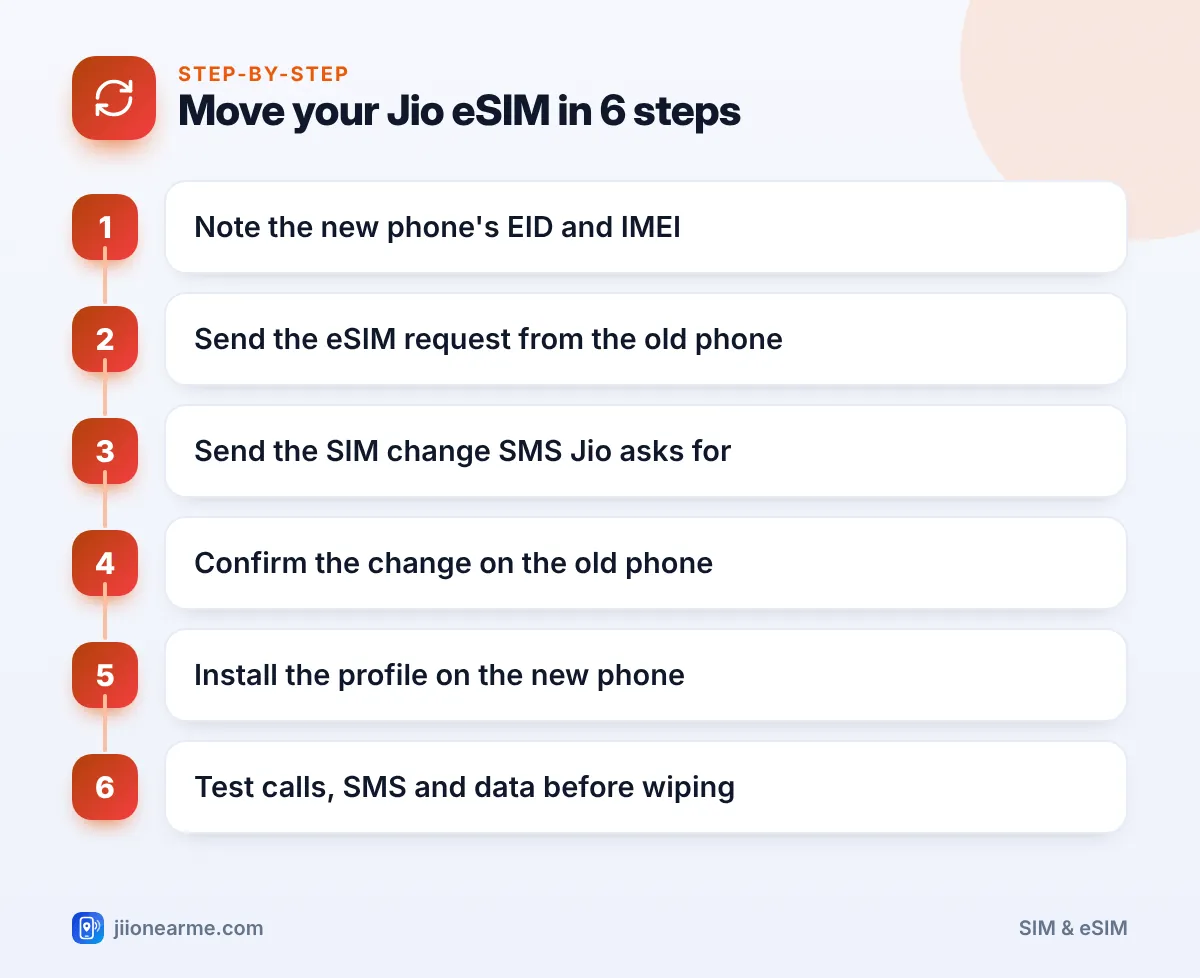
- Note the new phone’s details. Write down the EID and IMEI of the new phone, digit by digit.
- Send the eSIM request from the old phone. Using your Jio line, send the request to 199 in the format Jio publishes (it starts with
GETESIM), with the new phone’s EID and IMEI. - Read Jio’s reply. You receive an SMS with an eSIM number. Keep this message.
- Send the SIM change request. Send the second SMS to 199 as Jio’s reply instructs (it starts with
SIMCHG). - Confirm on the old phone. Jio sends a confirmation request, sometimes after a wait. Reply exactly as told. You may also get an automated call.
- Install the profile on the new phone. Once your old phone loses service, open the new phone’s SIM settings, choose to add an eSIM and follow the prompts over Wi-Fi.
- Test the new line. Make a call, send an SMS and open a website on mobile data with Wi-Fi turned off.
Moving between iPhone and Android
The same method works when you change brands, because the request only needs the new phone’s EID and IMEI. Moving your apps and chats between platforms is a separate job, so use each app’s own transfer or backup option.
When SMS Is Not Possible: Use a Jio Store
The SMS method needs a working Jio line to send and confirm the request. If your old phone is lost, broken or already reset, that is not possible.
In that case, visit a Jio Store with your original ID proof and your new phone. The staff verify your identity and help you set up a new eSIM, usually with a QR code. If the old phone was lost or stolen, call 1800-889-9999 from another phone first to block the line.
What to Do Before You Wipe or Sell the Old Phone
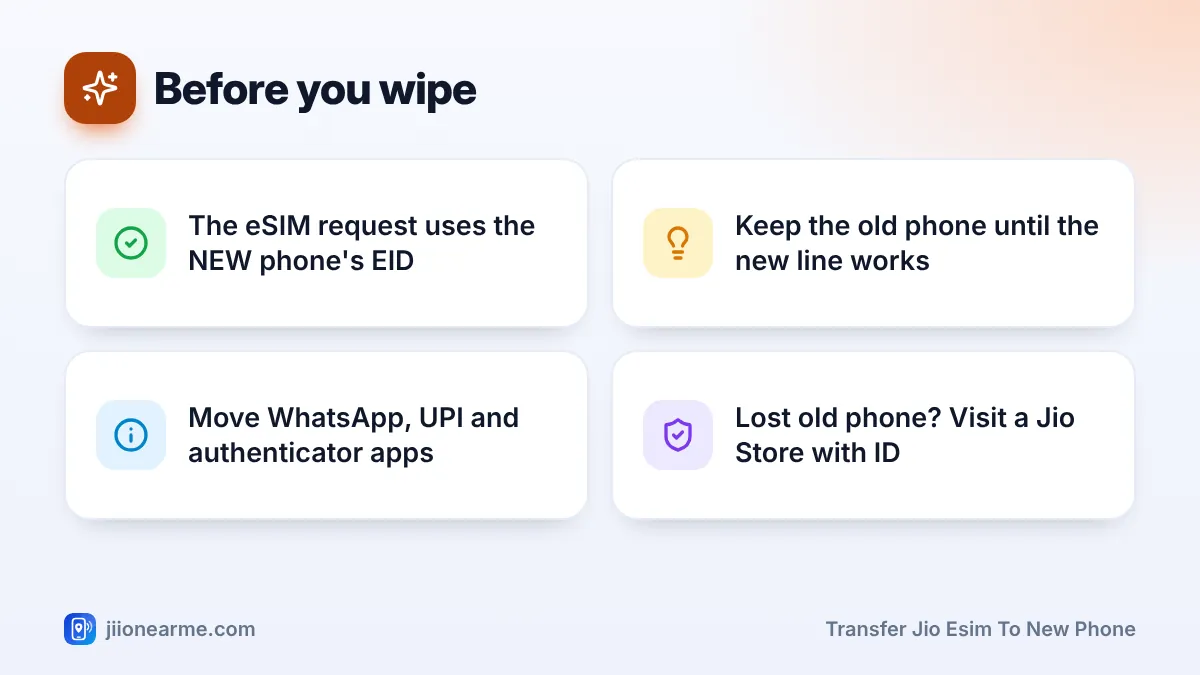
Once the new eSIM works, the old phone’s profile is no longer active. Even so, go through this checklist before you erase it:
- Confirm the new line fully works, including calls, SMS and mobile data.
- Move WhatsApp using its chat backup or transfer option.
- Move authenticator apps. Many have an export or transfer feature, and some accounts need you to set up two-step verification again.
- Set up UPI apps again on the new phone. They verify your number through the SIM in that phone.
- Sign out of your Google or Apple account and turn off Find My or Find My Device on the old phone.
- Delete the old eSIM profile during the reset. It no longer works, so removing it is safe now.
If you reset the old phone before starting, its eSIM may be erased and you lose the easy SMS route. Then you will need a store visit. Always finish the transfer, test it, and only then wipe.
Fixing Common Transfer Problems
- No reply to the first SMS. Check that you used the new phone’s EID and IMEI, with no extra spaces. Wait a while before resending.
- Old phone lost service but the new phone shows nothing. Stay on Wi-Fi, restart the new phone and check its SIM settings for a pending plan.
- Profile download fails. Try another Wi-Fi network and update the phone’s software.
Before you start, take a screenshot of your EID and IMEI on the new phone. It makes typing them into the SMS much easier and reduces mistakes.
Frequently Asked Questions
Can I scan my old eSIM QR code on the new phone?
Usually not. eSIM QR codes are generally single-use and tied to the original phone. Request a new eSIM for the new phone instead.
Will my Jio number or plan change?
No. Your number, active plan and validity stay the same. Only the phone holding the eSIM changes.
How long does an eSIM transfer take?
It often completes within a few hours, but the confirmation step can take longer. Plan for a gap in service.
Can I move my Jio eSIM to a phone without eSIM support?
No. For a phone without eSIM, visit a Jio Store with your original ID and ask for a physical SIM.
What if I receive an eSIM request I did not send?
Do not reply or confirm it. Call Jio on 1800-889-9999 and report suspicious callers through Chakshu on the Sanchar Saathi portal.
Wrapping Up
To transfer a Jio eSIM to a new phone, request a fresh profile using the new phone’s EID and IMEI, confirm it from your current line and install it over Wi-Fi.
Keep the old phone untouched until the new one works for calls, SMS and data. After that, move your apps, sign out of your accounts and wipe the old handset with confidence.
JIo Near me is an independent guide and is not affiliated with Reliance Jio. App menus, plans and policies can change – always confirm current details in the official MyJio app or on jio.com. We will never ask for your OTP, PIN or passwords.