Who can see your profile photo, know when you were last online, or add you to a group full of strangers? On WhatsApp, you decide, through a handful of settings under Settings > Privacy. A few minutes spent there cuts down unwanted contact and keeps personal details away from scammers.
This checklist goes through each setting that matters, suggests a sensible choice, and explains the trade-off so you can adjust it to your needs. It ends with security settings that work alongside your privacy choices.
- Find WhatsApp privacy settings under Settings > Privacy on both Android and iPhone.
- The built-in Privacy checkup groups the key options in one guided flow.
- Limit last seen, profile photo, About and status to your contacts.
- Stop strangers from adding you to groups and silence calls from unknown numbers.
- Turn on Protect IP address in calls for extra privacy during calls.
Where to Find WhatsApp Privacy Settings
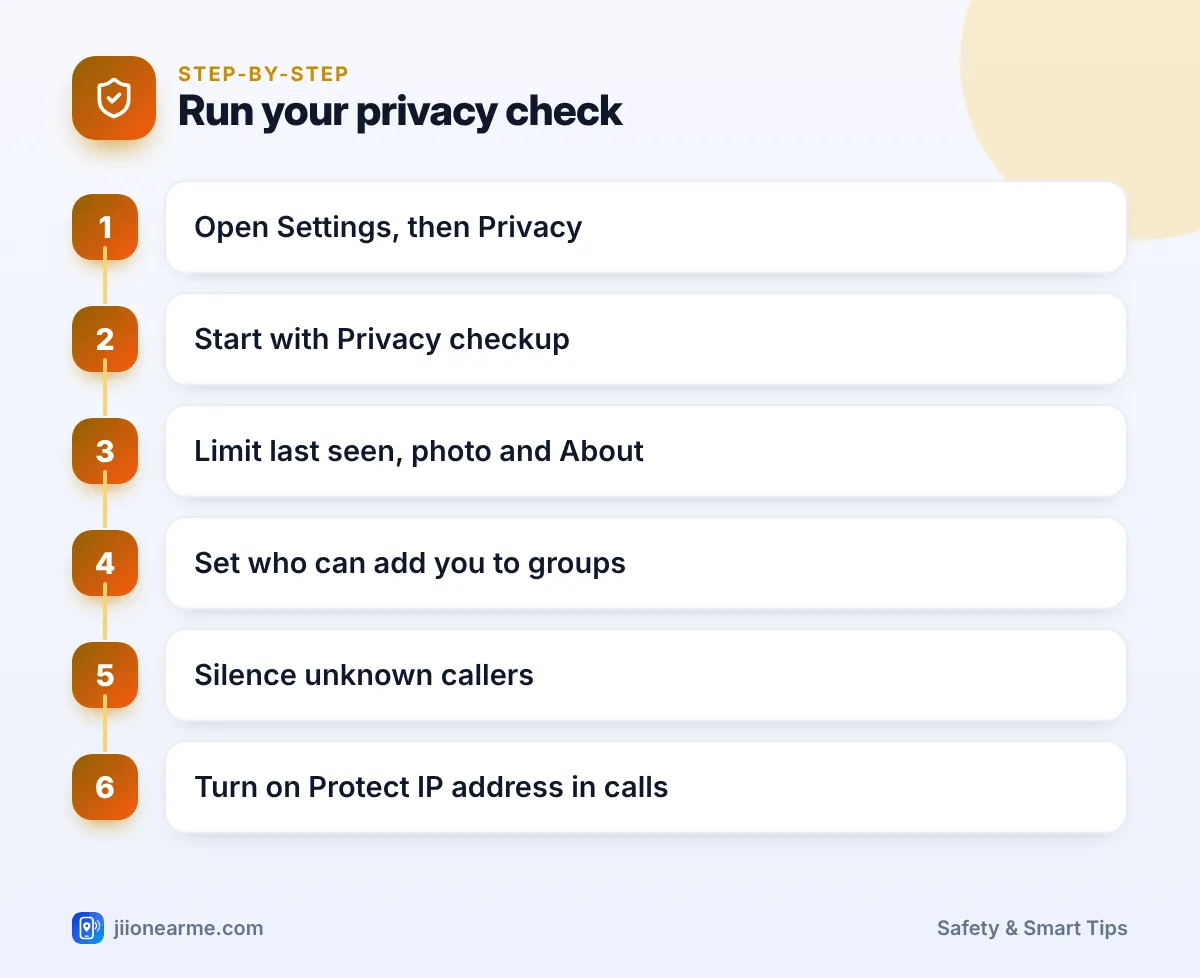
- Open WhatsApp.
- On Android, tap the three-dot menu (⋮) and choose Settings. On iPhone, tap the Settings tab.
- Tap Privacy.
Labels and the order of options can differ slightly between app versions. If something is missing, update WhatsApp from the Play Store or App Store.
Start With the Built-In Privacy Checkup
Near the top of the Privacy screen, you will usually see Privacy checkup. It groups the main options into short sections, such as who can contact you, who can see your personal information and how to add more privacy to chats and calls.
It is a good starting point for beginners and for helping parents set up their phones. Use the checklist below to understand each choice in more detail.
The WhatsApp Privacy Settings Checklist
1. Last seen and online
Choose who can see when you last used WhatsApp: everyone, your contacts, your contacts except certain people, or nobody. You can also set who sees when you are online, either everyone or the same people as last seen.
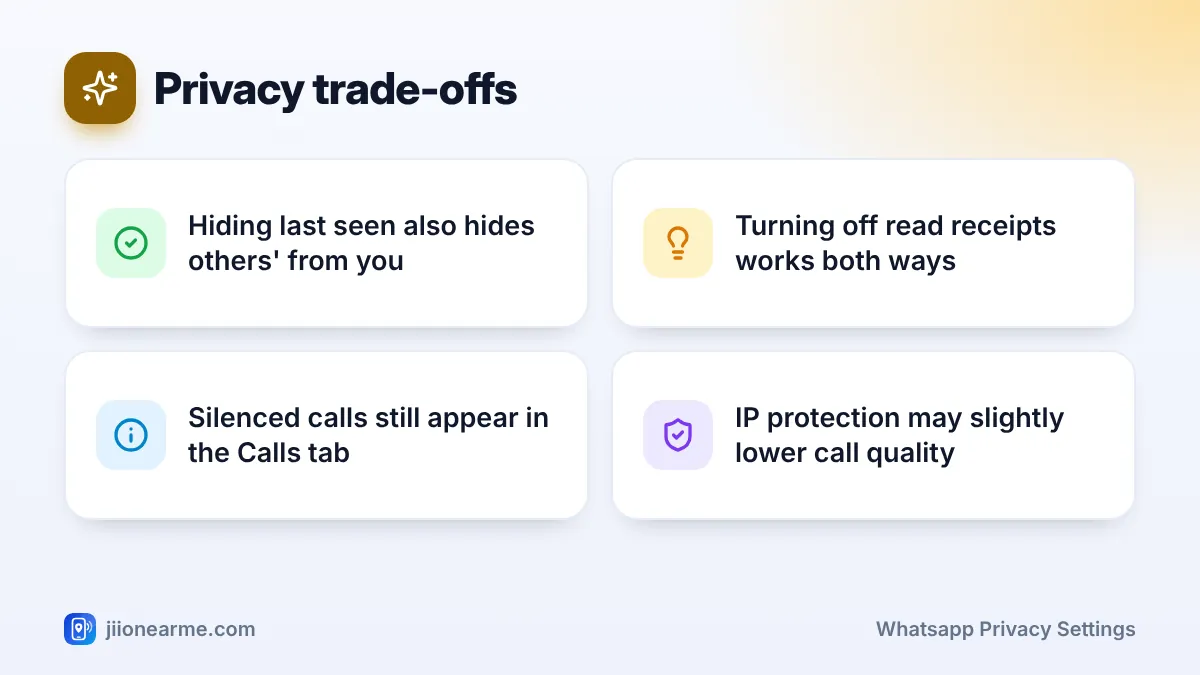
Suggested: My contacts or Nobody. If you hide your last seen, you cannot see other people’s last seen either.
2. Profile photo
Strangers can save your profile photo and misuse it, for example in fake profiles. Limit it to My contacts, or to My contacts except certain people.
3. About
Your About text may include your work or city. Limit it to My contacts, and avoid putting your phone number, address or workplace in it.
4. Status
Status has its own audience setting: your contacts, your contacts except certain people, or only selected people. Review it before posting family photos or travel plans.
5. Read receipts
Turning off read receipts hides the blue ticks for messages you read. The trade-off is that you will not see blue ticks from others either. Read receipts are always sent in group chats.
6. Groups
Open Groups and change who can add you from Everyone to My contacts or My contacts except certain people. People who cannot add you directly may send an invite instead, which you can ignore.
7. Silence unknown callers
Under Calls, turn on Silence unknown callers. Calls from numbers not saved in your contacts will not ring, but they still appear in your call list and notifications.
8. Protect IP address in calls
Under Advanced, turn on Protect IP address in calls. Calls are then relayed through WhatsApp’s servers so that the other person cannot work out your approximate location from your IP address. Call quality may drop slightly.
9. Other advanced options
In the same Advanced section, you may also see options to disable link previews and to block unknown account messages that arrive in unusually high numbers. Turn these on if they appear in your version.
After changing your settings, ask a family member who is not in your contacts to check what they can see. It is the quickest way to confirm your profile photo and About are really hidden.
Suggested Settings at a Glance
| Setting | Suggested choice | Trade-off |
|---|---|---|
| Last seen and online | My contacts or Nobody | You cannot see others’ last seen if you hide yours |
| Profile photo | My contacts | New contacts see your photo only after saving you |
| About | My contacts | None worth noting |
| Groups | My contacts | Unknown group admins must send you an invite |
| Silence unknown callers | On | Calls from new numbers, such as couriers, won’t ring |
| Protect IP address in calls | On | Calls may sound slightly less clear |
Privacy settings control what people see. If someone keeps messaging or calling you, open the chat, tap their name or number, and choose Block. Blocked contacts cannot see your last seen, online status, status updates or profile photo changes.
Security Settings to Pair With Your Privacy Choices
Privacy settings work best alongside a few security steps:
- Two-step verification: go to Settings > Account > Two-step verification and set a six-digit PIN with a recovery email.
- App lock: under Privacy, look for App lock on Android or Screen lock on iPhone, and use your fingerprint, face or passcode.
- Chat lock: long-press a sensitive chat and look for Lock chat to hide it behind your phone’s lock.
- Linked devices: in Settings, open Linked devices and log out of any computer or browser you don’t recognise.
- Blocked contacts: review the list under Privacy now and then.
No privacy setting can protect you if you share your WhatsApp registration code or two-step PIN. WhatsApp will never ask for them in a chat or call.
How Often to Review Your Settings
Check your privacy settings every few months, after updating WhatsApp, and whenever you get a new phone. New features often appear under Privacy or Advanced, and a fresh install may not restore every choice you made earlier.
If you receive a scam call or message on WhatsApp, block and report the contact inside the app. For fraud attempts, you can also report through Chakshu on the Sanchar Saathi portal, and call 1930 at once if money is lost.
Frequently Asked Questions
If I hide my last seen, can I still see others' last seen?
No. WhatsApp treats it both ways. If you share your last seen with nobody, you will not see other people’s last seen either.
Will people know if I hide my profile photo from them?
WhatsApp does not notify them. They will simply see a default image instead of your photo.
Does Silence unknown callers block those calls?
No. The calls are not blocked, only silenced. You can still see them in your Calls tab and call back if a number turns out to be genuine.
Are WhatsApp calls encrypted without IP protection?
Yes. Personal calls are end-to-end encrypted either way. Protect IP address in calls adds a separate layer by hiding your IP address from the other person.
Wrapping Up
Good WhatsApp privacy settings come down to a few choices: share personal details only with contacts, stop strangers from adding you to groups, silence unknown callers and protect your IP address in calls. Run the Privacy checkup, pair it with two-step verification, and review everything every few months.
JIo Near me is an independent guide and is not affiliated with Reliance Jio. App menus, plans and policies can change – always confirm current details in the official MyJio app or on jio.com. We will never ask for your OTP, PIN or passwords.