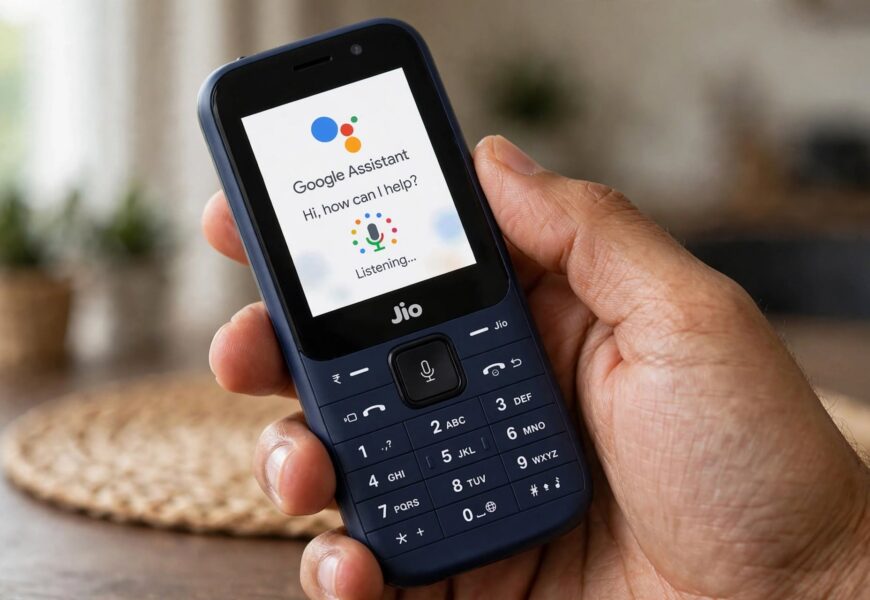
One of the standout features Jio marketed heavily with its ₹1500 JioPhone was hands-free voice control — a genuinely useful feature on a keypad phone with no touchscreen or full QWERTY keyboard to type with. If you’ve never used it, or it’s stopped responding after an update, here’s exactly how to turn it on and get it working again.
Quick Answer: The voice activation feature on the JioPhone runs through Google Assistant Go, a lightweight version of Google Assistant built specifically for JioPhone’s KaiOS operating system. To activate it, press and hold the Home button on your JioPhone, or open the Google Assistant Go app directly from your app menu, then press the Speak option and say your command. No separate “activation” step or setting toggle is required beyond having the app available and your phone connected to a network.
Here’s the full walkthrough, common commands you can use, and what to check if voice command isn’t responding.
Step-by-Step: Turning On Voice Command
- Locate Google Assistant Go on your JioPhone. It usually comes pre-installed and can be found in your app menu, or accessed directly from the home screen search bar icon.
- Press and hold the Home button on your JioPhone — this is the fastest shortcut to launch the assistant from any screen.
- Alternatively, open the Google Assistant Go app directly if you prefer navigating through the menu instead of using the shortcut.
- Once the assistant screen appears, select “Speak” and clearly say your command or question.
- Google Assistant Go will process your request and either respond aloud, open the relevant app, or complete the requested action, such as placing a call or turning on the flashlight.
Unlike the Google Assistant setup process on a full Android smartphone, there’s no separate “Hey Google” hotword training or toggle switch required on JioPhone’s simplified version — the Home button shortcut is the primary way it’s designed to be triggered.
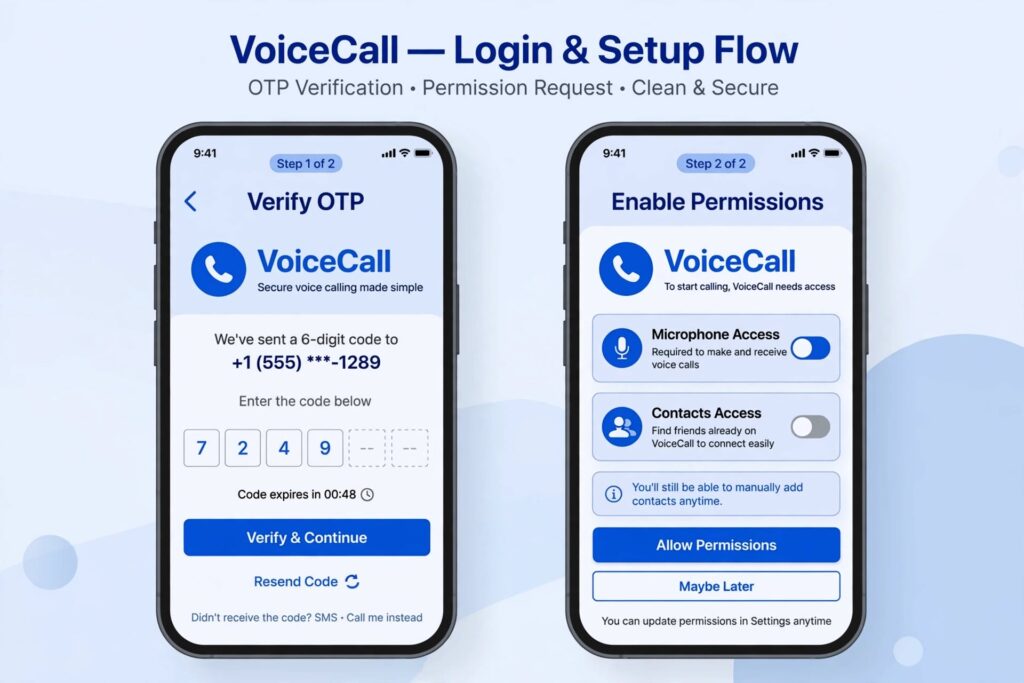
Pressing and holding the Home button is the quickest way to launch Google Assistant Go on a JioPhone.
What You Can Actually Do With Voice Commands
Google Assistant Go on JioPhone supports a simplified but genuinely useful range of commands for a keypad phone, including:
- Making calls — “Call [contact name]”
- Basic phone functions — “Turn on the torch,” “Turn on Bluetooth”
- Web searches — Asking general knowledge questions or checking the weather
- Opening apps — Launching supported apps directly by voice
- Setting reminders or alarms, depending on your JioPhone software version
Since Google Assistant Go is a lighter version built for basic phones, it supports fewer advanced actions than the full Google Assistant found on Android smartphones, but it covers the core hands-free functions most JioPhone users actually rely on.
If Voice Command Isn’t Working
If pressing and holding the Home button doesn’t bring up the assistant, or your commands aren’t being recognized, try these steps in order:
- Confirm you have an active data or Wi-Fi connection. Google Assistant Go needs an internet connection to process voice commands, so a data or network issue can make it seem like the feature has stopped working entirely.
- Check that Google Assistant Go is installed and updated through the JioStore, since older versions on some units can behave inconsistently after a software update.
- Restart your JioPhone. A simple restart resolves many temporary app-related glitches on KaiOS devices.
- Speak clearly and close to the phone’s microphone, since background noise or holding the phone too far away are common reasons a command isn’t recognized correctly.
- Check for a pending JioPhone software update, since Jio periodically pushes updates that can affect how built-in apps like Google Assistant Go perform.
If your broader concern is that your Jio SIM itself isn’t functioning correctly rather than just the voice assistant, our guide on how to keep your Jio SIM active without recharge covers a related, commonly confused issue worth ruling out first.
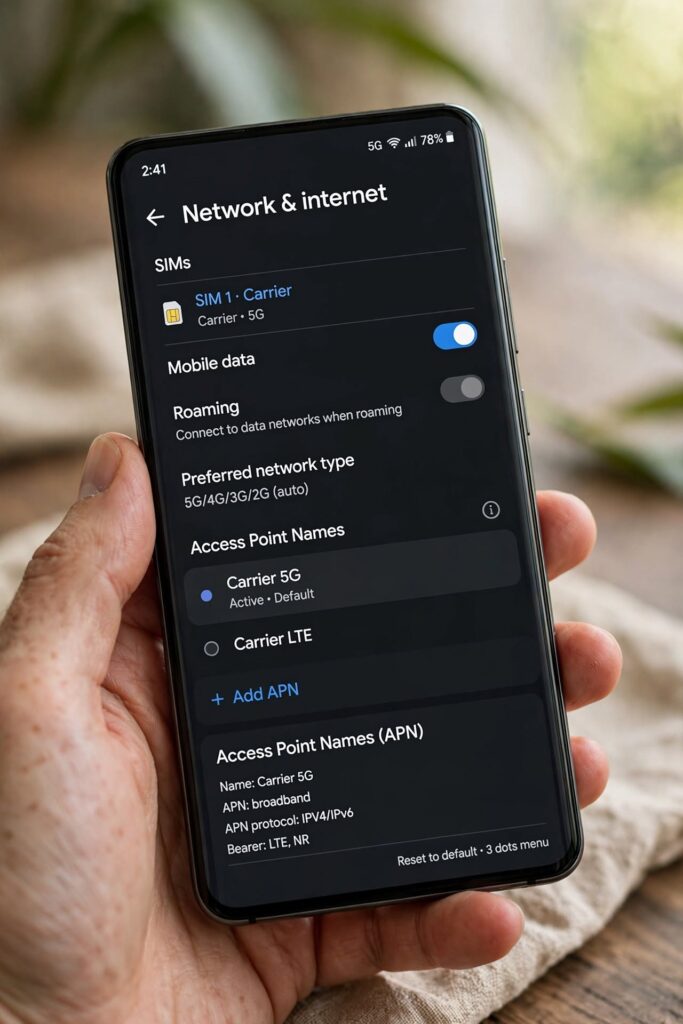
Speaking clearly and close to the phone’s microphone helps improve voice command recognition accuracy.
A Few Things to Keep in Mind
- Voice command requires an internet connection — it won’t function in airplane mode or with no active data or Wi-Fi.
- Background noise affects accuracy significantly more on a basic phone’s microphone than on a premium smartphone, so use it in a quieter environment when possible.
- Not every app on JioPhone supports voice-triggered actions, so some commands may simply search the web rather than directly opening a specific app if that integration isn’t supported.
Frequently Asked Questions
Does every JioPhone have voice command built in?
Most JioPhone models running KaiOS come with Google Assistant Go pre-installed, including the ₹1500 model, though very old software versions may need an update through JioStore to access the full feature set.
Why isn’t my JioPhone’s voice command responding?
The most common causes are a missing data or Wi-Fi connection, background noise interfering with the microphone, or an outdated version of the Google Assistant Go app. Restarting the phone resolves many temporary issues as well.
What is the wake word for JioPhone’s voice assistant?
Unlike full Android smartphones that use “Hey Google” or “OK Google” as a wake word, JioPhone’s Google Assistant Go is typically launched manually by pressing and holding the Home button rather than a spoken wake phrase.
Can I use voice command without an internet connection on JioPhone?
No. Google Assistant Go needs an active data or Wi-Fi connection to process and respond to voice commands, since the processing happens through Google’s servers rather than entirely on the device itself.
Is Google Assistant Go the same as the full Google Assistant?
No. Google Assistant Go is a lightweight version built specifically for basic and entry-level devices like JioPhone, supporting core voice commands but with fewer advanced features than the full Google Assistant available on Android smartphones.
Having other issues with your JioPhone or Jio SIM? Check out our guides on activating voicemail on Jio and getting 1GB free data on Jio, or browse more Jio tips on Jio Near Me.
