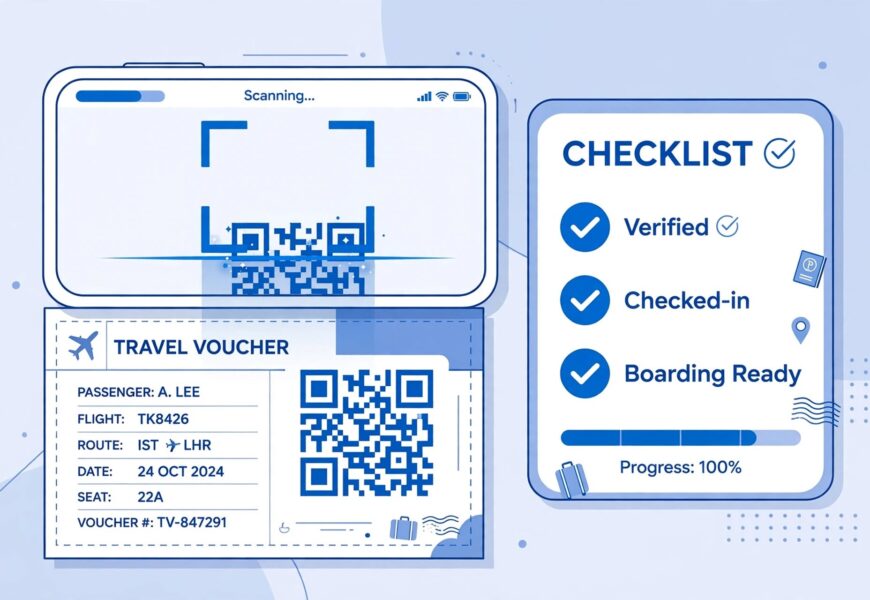
Figuring out how to activate an eSIM in India trips up a lot of first-time users simply because the process is unfamiliar — there’s no physical card to insert, so it’s easy to wonder if you’re doing it right. The good news is that activation is genuinely simple once you know the steps, and this guide walks you through the entire process from purchase to your first connection after landing.
Before You Begin: What You’ll Need
- A confirmed eSIM purchase with a QR code (usually emailed as a PDF or image)
- An eSIM-compatible smartphone with the latest software update installed
- A stable Wi-Fi connection (activation requires internet access, which is why you should never wait until you’re standing at the airport with no signal)
If you haven’t purchased your eSIM yet, our comparison of the best eSIM providers for India can help you pick the right plan before you start this process.
Step 1: Confirm Your Device Is eSIM Compatible
This sounds obvious, but it’s the most common point of failure. Not every smartphone supports eSIM, and even among supported models, some carrier-locked or region-specific versions don’t. Before doing anything else, check your specific device — our guide on eSIM compatible phones has a full breakdown by brand and model.
Step 2: Install the eSIM Profile Before You Fly
Most experienced travelers install (but don’t activate) their eSIM profile a day or two before departure, while still connected to reliable home Wi-Fi. This avoids relying on unpredictable airport Wi-Fi and means you’re ready to switch on data the moment you land.
On iPhone:
- Go to Settings > Cellular > Add eSIM
- Tap Use QR Code
- Scan the QR code from your purchase email, or upload it directly if you received it as an email attachment
- Follow the on-screen prompts to confirm the plan label (e.g., “India Travel”)
On Android (Google Pixel, Samsung, and most other Android phones):
- Go to Settings > Network & Internet > SIMs > Add SIM
- Select Download a SIM instead
- Scan the QR code when prompted
- Confirm the plan details on screen
Google provides an official step-by-step eSIM setup tutorial for Pixel devices, and the process is nearly identical across most Android manufacturers.
Step 3: Label and Configure Your Data Line
Once the profile installs, your phone will ask you to choose default settings. This is important to get right:
- Set your home SIM as the default for calls and SMS (so you still receive OTPs and calls on your regular number)
- Set the new India eSIM as the default for cellular data
- Enable Data Roaming specifically for the eSIM line (this is a common step people miss — without it, you won’t get data even though the eSIM is installed)
Step 4: Don’t Activate Data Until You Land
Here’s a detail many guides skip: installing the eSIM profile and activating the data plan are two different things. Most tourist eSIMs only start counting your validity period once you first connect to a network in India — not from the moment of purchase or installation. This means you can safely install your eSIM days in advance without wasting any of your paid data days, as long as you keep mobile data turned off for that line until you actually land.
Step 5: Turn On Data After Landing
Once you’re at the airport (most international terminals have free Wi-Fi if you need to double-check anything), turn on mobile data for your eSIM line and disable Wi-Fi temporarily to confirm you’re getting a signal. You should see your provider’s network name appear in the status bar within a minute or two.
Step 6: Verify Everything Is Working
Open a browser and try loading a simple page, or check your maps app to confirm location and data are working. If you don’t see a connection:
- Confirm Data Roaming is enabled for the eSIM line specifically
- Restart your phone (this resolves the majority of activation delays)
- Check that Airplane Mode is fully off
If none of this works, our eSIM QR code troubleshooting guide covers the most common activation failures and how to fix them.
Common Activation Mistakes to Avoid
- Scanning the QR code twice. Each QR code is typically single-use — scanning it on a second device (or after deleting and reinstalling) can invalidate it. Contact your provider for a replacement rather than rescanning.
- Forgetting to enable data roaming. This is the single most common reason travelers report “the eSIM isn’t working” when it’s actually installed correctly.
- Losing the QR code email. Save the confirmation email or screenshot the QR code before you travel, in case you need to reinstall on a new device.
- Not checking APN settings. In rare cases, especially on older Android phones, you may need to manually enter Access Point Name (APN) settings provided by your eSIM provider.
Activation Differences by Provider
Activation steps are largely standardized across the industry since they follow the same GSMA eSIM specification, but the exact QR code delivery method and support process varies by provider. Some, like JiionEarMe, send the QR code instantly by email with an accompanying step-by-step guide, while others require you to log into an app first. Check your confirmation email carefully for provider-specific instructions.
What If You’re Using Two eSIMs or a Physical SIM Too?
Modern phones support multiple eSIM profiles plus a physical SIM simultaneously (device-dependent — check your specific model). If you’re keeping your home SIM active for calls while using the India eSIM for data, make sure you’ve correctly assigned data usage to the new eSIM line in your settings, not left it on your home SIM’s expensive international roaming rates. For more on managing this setup, see our comparison of eSIM vs physical SIM for India.
Frequently Asked Questions
How long does eSIM activation actually take?
The technical installation takes about 2–3 minutes. Full network activation after landing usually completes within 5–10 minutes of enabling data roaming.
Can I activate my India eSIM before I leave home?
You can install it before departure, but avoid turning on its data connection until you land, since most plans start the validity countdown on first network connection.
What if I don’t have Wi-Fi to install the eSIM before my flight?
Use any available Wi-Fi — a café, hotel, or even mobile hotspot from another device — since installation genuinely requires an internet connection at least once.
